Revise a sent proposal
A proposal locks when you send it, so the client always sees exactly what you approved. To change it, you make a new version, check it, and send it.
Sent or signed
The client’s copy. It does not change.
Create revision
A copy of v1 that you can edit.
Make the changes
Edit the draft, or add changes you made in Production.
Send update
The client gets v2. Your history keeps v1.
When to use this
- The client asks for a change after you sent the proposal.
- You changed the event in Production after you sent the proposal, and the client must approve the new scope or price.
Two ways to start
The client asks for a change.
You changed the event after you sent the proposal.
Start from the proposal page
Open the event and choose Proposal. A sent or signed proposal is locked.
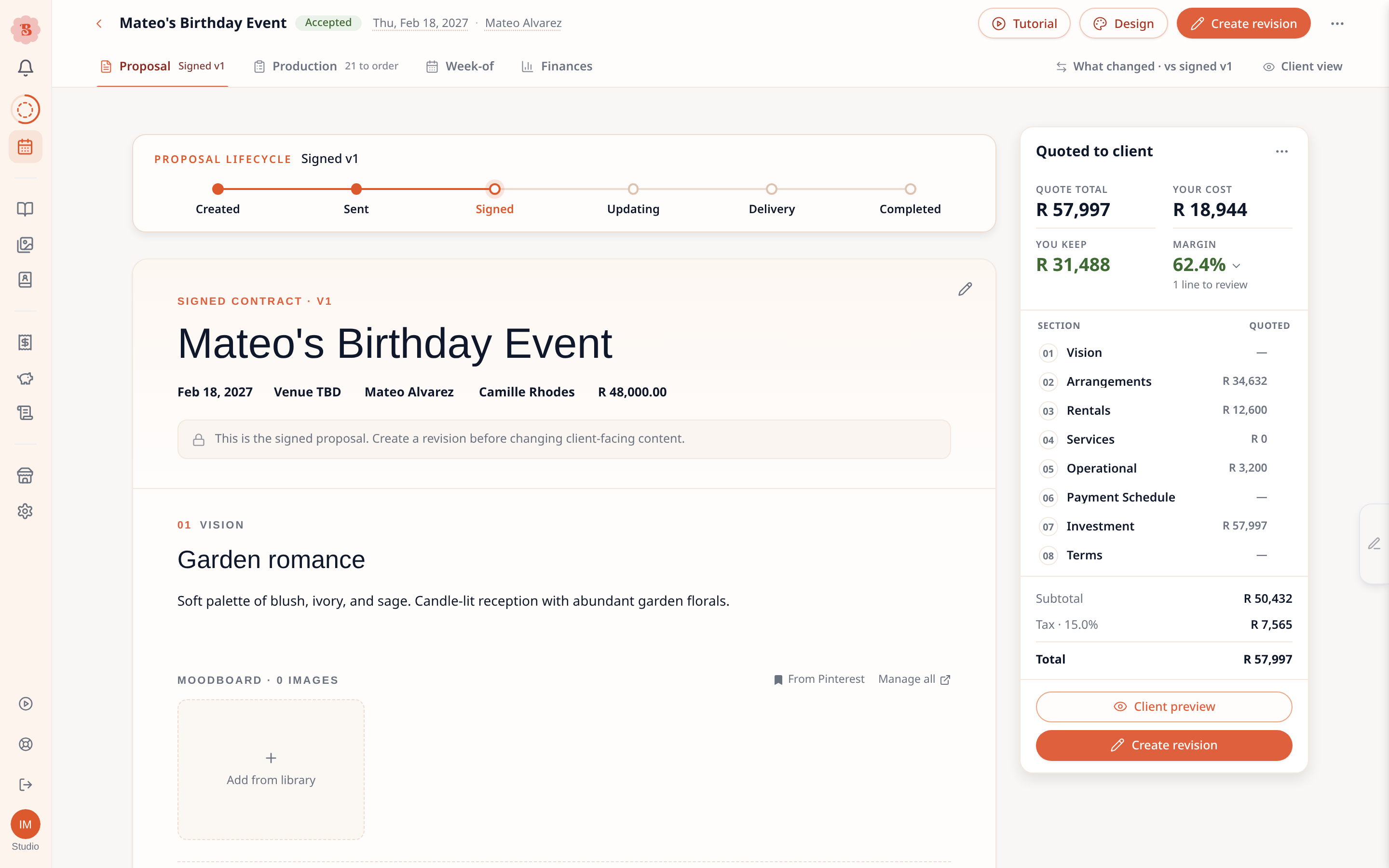
- Create revision starts the new version.
- The lock note tells you why the page does not change.
- The same button is also in the summary panel.
The new version opens as the same document you sent. Its design, footer, page setup, your text edits, photo choices, extra pages and payment schedule all come with it. Edit it like any proposal. The version the client has stays as it is.
When the client asked for changes
An amber banner at the top of the proposal shows the request, for example “Sarah requested changes”, with each message and when it came. Choose Revise proposal in the banner. The next version starts and opens at once, with no second step. A note says, for example, “Version 2 started. Sarah sees nothing until you send it.” The banner stays above the draft while you work, so you can read the request.
Start from Production
When you change an event in Production after you send the proposal, the client does not see that change yet. A card at the top of Production lists each change: a new quantity, a new price, or an item you added or removed.

- Where the revision stands. Revision needed means there is no draft yet. Revision in progress means a draft is open.
- What changed, for example Quantity 3 → 8.
- The effect on the quote.
- In new quote or Held at quoted. You see this when a draft is open.
- Create proposal revision, or Review draft when a draft is open. Both open the draft at the first change.
Add changes to the new quote
A new draft starts as a copy of what the client has. Each change from Production waits on its line until you choose it.
You change the event
For example, a quantity from 3 to 8.
Held at quoted
The draft keeps the value the client saw.
Add to new quote
You choose each change, line by line.
In new quote
The client sees it when you send.
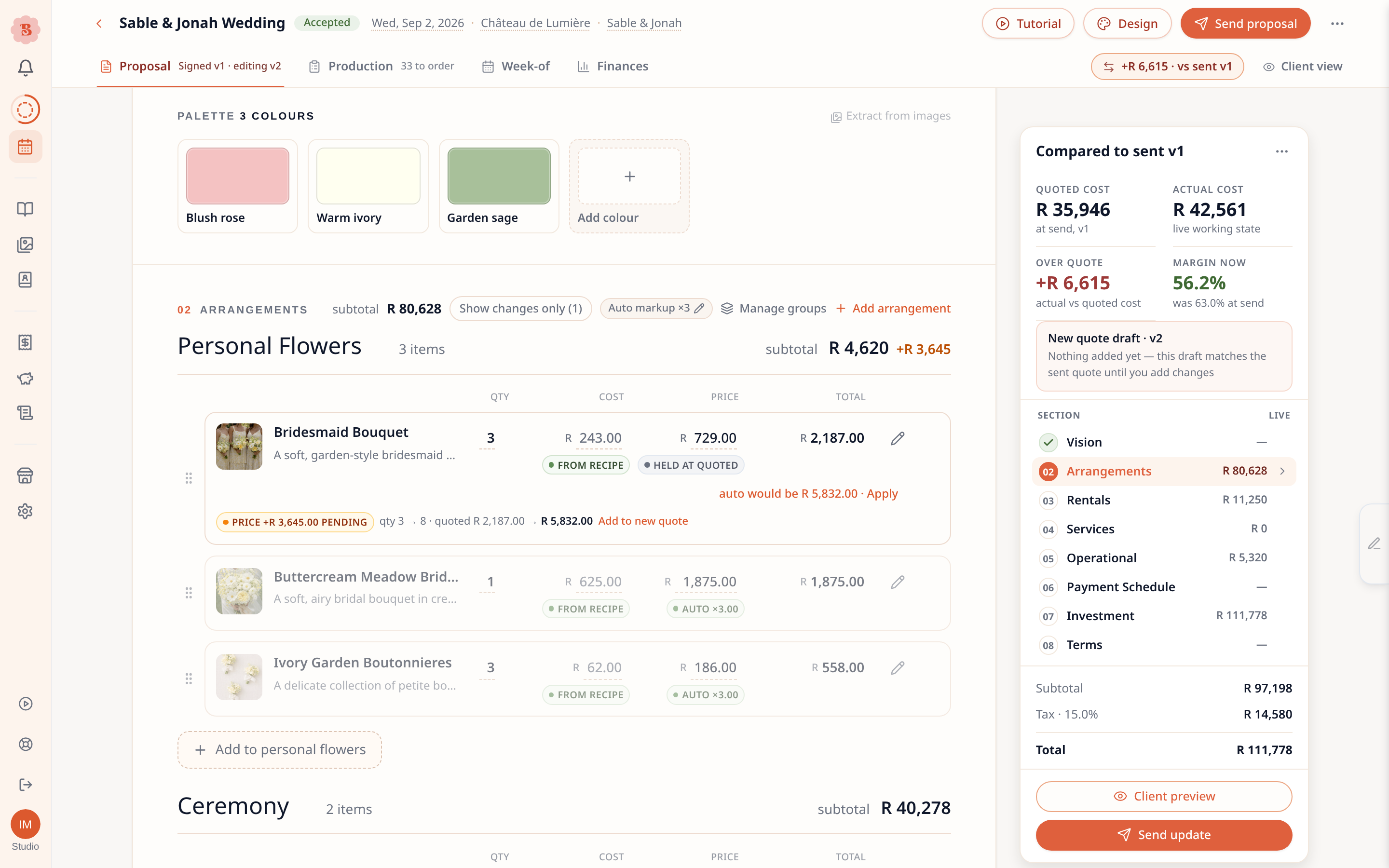
- What changed is on. It compares the draft with what the client has.
- Held at quoted. The line still shows what the client saw.
- Add to new quote puts the whole line, as it is now, into the new quote. To take it out again, click undo.
- New quote draft says what the new quote holds so far.
- Send update sends the new version when it is ready.
Items you added or removed in Production are in the draft already. They need no click.
What changed also lists what you removed since the client got the proposal: arrangements, rentals, services and operational costs. Each one shows crossed out, with the price the client was quoted and Removed. A removed arrangement shows in its old group. If that group is gone, it shows under Removed after the groups. Show changes only counts removed arrangements too.
A service priced as a percentage, such as labour at 30% of arrangements, follows the new quote. When you change an arrangement in the draft, the service price changes with it, and What changed shows it as In new quote. If you change the service itself in Production, for example its percentage, add it to the new quote like any other line.
A version that came in from Dubsado keeps its own lines, such as a single “As per PDF” line for the whole quote. They do not come into the new version. The new version lists the event’s arrangements, rentals, services and operational costs, which is what it sends. An imported version has no PDF to open: the Production lens shows No PDF: this version came from Dubsado in place of Reference proposal.A change you do not add stays out of the new quote. The client keeps the value they saw, and the difference shows only in your own numbers.
If you come back to the draft later, click What changed at the top of the page to see the changes again.
You can also ask the assistant to add the changes held at the price your client saw to the new quote, for example “add the extra centrepieces to the new quote”. It names what it added, and Undo takes them back out.
Send the new version
Click Send update, then send it the way you send any proposal. See Create and send a proposal. The client always sees the latest version. Your history keeps every earlier version, marked Superseded: see Find earlier versions for where the Proposal history list is.
Changes since you signed is switched on for studios a few at a time. When it is on for your studio and the client signed an earlier version, their page shows Changes since you signed above the new version. It lists the lines, the total, the event date and the venue that changed since the last version they signed, and shows a price only where your proposal shows prices to the client. The list is fixed when you send. Your own compare view keeps the name What changed. See Client hub.What to remember
- A sent proposal never goes back to draft. You always edit a new version.
- You cannot delete a new version or go back to an earlier one. Until you send the new version, your client keeps the version they have, and their payments follow it.
- To take a change out of the new version, click undo on a line you added to the new quote. To put a cost or quantity back, change it again in Production.
- A new version keeps the terms, special conditions, design, pages and payment schedule of the version before it.
- When you send the new version, the link you sent before still opens. It shows Newer version available with a link to the newest version, and only the newest version can be signed.
- When you send the new version, the reminders of the version before it end, and the new version starts its own. See Reminders and deadlines.
- The client can ask for changes on their review page. This marks the proposal for a revision.
- A signed proposal is locked. To change it, send a new version for the client to approve.
- In the design studio, a sent proposal opens for viewing only. Make a revision on the bar at the top starts the new version.
- If a photo was deleted from your library since the last version, the new version uses the arrangement’s current photo. If the arrangement has no photo, Checks stops the send with “Photo missing on” the item until you add one.