Find your way around Business and Settings
When to use this
Use this page to learn where configuration lives, so you can jump straight to the right place later. There are two areas, and the split is simple: Business is what defines your studio to clients and how you get paid. Settings is about you: your account, your BloomBoard plan, and the apps connected to your own login.
Two areas, one layout
Both areas open inside the app, so the main navigation stays where it always is and you can hop back to your events, library, or documents at any time. Both sit at the bottom of the main navigation, Business directly above Settings. Your avatar opens Settings too.
On desktop, a grouped sidebar organises each area’s pages; on a phone, you get a tappable index instead. The fastest route anywhere is search: press / (or the search button) in either area and type what you are after. Search covers both areas at once, so “password” from Business finds Change password under a Settings · Account heading. Results include the individual sections on each page, so “domain” brings up Your domain on What clients see, and “deposit” brings up the deposit settings on Invoices and the Payment schedule on Proposal settings. A page’s old name finds it too: “groups and pieces” brings up the Pieces row on Enquiry form. Pick one and the page scrolls straight to that section and highlights it for a moment.
On a phone, an open page shows ‹ Business or ‹ Settings at the top left. Tap it to go back to the index. Search has a Cancel button beside the field to close it.
⌘K opens the BloomBoard assistant everywhere in the app, these areas included. Search is on / so the two never collide.
The chevron at the top of the sidebar folds it away when you want the room, useful on the wider pages like the brief editor. A slim strip stays at the left edge; its chevron brings the menu back. The menu is shown again each time you open Business or Settings.
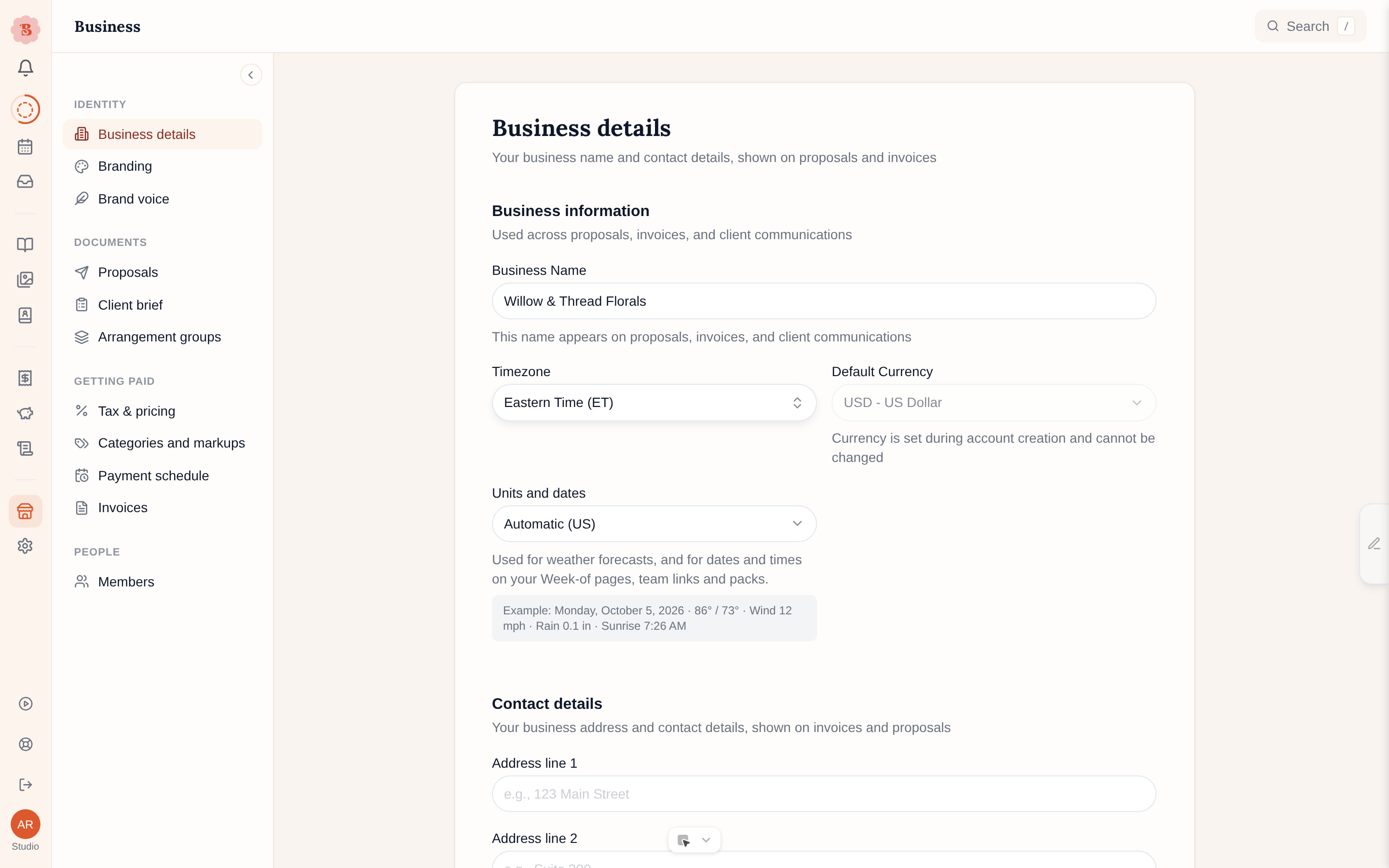
Business
The Business menu has five groups: Identity, Enquiries, Workflow, Pricing and proposals and Getting paid.
Identity
-
Business details: the studio’s name, contact details, country, and the currency your proposals and invoices use. You choose the currency when you sign up, and this page only shows it. To change it, contact BloomBoard support. Search the country picker and choose the matching country from the list; this also anchors venue search to your country, and the city or postal code pulls results towards your studio. The business email here is where client replies to proposals, invoices, and brief requests arrive; leave it blank and replies go to the account owner’s login email instead. Timezone sets the clock for reminders, the daily digest, the assistant and the Week-of “Now” task. BloomBoard sets it from your browser the first time an owner or admin signs in, so you only change it if it is wrong. Search the picker by city, for example “Phoenix” or “Toronto”. A timezone you pick yourself stays as you set it. Units and dates sets how weather and every date and time read: US (°F, mph, inches, “Oct 5”, “3:00 PM”, weeks start on Sunday) or Metric (°C, km/h, mm, “5 Oct”, “15:00”, weeks start on Monday). It starts on Automatic, which follows your business location. Search “units”, “fahrenheit” or “date format” to find it. See Venue addresses and weather. The examples in the address and phone fields also follow your location, for example “Austin” and “78701” for a US studio. Phone fields for your team, coordinators and the contacts of clients, suppliers and venues take a local number, such as (512) 555-0100 in the US, and add your country’s code. See Manage your directory. Your location also sets the spelling BloomBoard uses for you and your clients: US spelling in the United States, Canadian spelling in Canada, and British spelling everywhere else. Text you write stays exactly as you typed it, and a proposal or invoice you already sent keeps its spelling.
-
Branding: a dropdown, not a page. Click it to open or close it. It opens by itself when you are on one of its pages, and holds four of them:
- Brand kit: your logo, your three brand colours (accent, background, ink), and your business website, reflected on proposals and other client-facing documents.
- What clients see: the Studio-plan custom branding: your brand on the pages and emails clients open, the browser icon and link preview, and your own web address. See Custom branding.
- Form look: the colours, fonts and shapes of every form your clients fill in and of your Price guide, set by hand or with Match my website. Clients see a change only after you select Keep. It is part of Studio and the free trial; on Core the page is locked. On a phone it shows the preview only. See Give your forms your own look.
- Brand voice: teach BloomBoard your studio’s way with words, so drafted text reads like you wrote it. See Brand voice.
On a phone, the four pages are listed under a Branding label.
Enquiries
- Price guide: appears when the price guide is switched on for your studio. It holds a table for each occasion: a column for each level, such as Classic and Abundant, and a row for each piece with its price. Under the table sit the guests at each table, the fee, the tax and the minimum. Preview opens the client’s view, live. See Show a price guide on your website.
- Enquiry form: what visitors fill in from your public enquiry link, set up by occasion. A chip for each occasion you offer sits under the title, with + Add an occasion. The chosen occasion’s card holds its name, the form it asks and its Pieces. The Every occasion card holds Budget, Contact details and Messages. What visitors see shows the form beside them. Share opens the link, QR code and sharing choices. It is part of every plan. See Capture enquiries with your public link.
Workflow
- Stages (Core and Studio): your own steps inside the statuses the board already has. The Lead card also holds Reply time: how many hours an enquiry can wait for a reply before its card turns amber. See Pipeline.
- Forms: called Client briefs until October 2026. Used for enquiries comes first, in a box: the forms your enquiry form asks, each tagged with the occasions that ask it. Other forms lists the rest, to send from an event or an automation. For an admin or owner, the ⋯ menu shows whether a form has BloomBoard’s questions or when it was last edited. On the Studio plan, Edit opens the editor: reword, reorder, require, hide, or add your own questions. On Core the list reads only, with Paused on Core on the forms Core cannot send. Budget ranges, minimum spend and the budget requirement are on Enquiry form, under Every occasion. Copy link beside a form makes that form’s link for one event. See Forms.
- Saved emails (Studio): emails you send often, with fields that fill themselves. Opens as a workspace of its own with a back link to Business. On Core it shows only when you wrote or changed saved emails, as a read-only list marked Paused on Core. See Saved emails.
- Task lists (Core and Studio): saved lists of tasks you add to an event in one go. See Task lists.
- Automations (Core and Studio; your own automations need Studio): the steps BloomBoard takes for you as an event moves along, such as a welcome email or a reminder. See Automations.
- Lead sources (appears with the pipeline too): where enquiries come from, the reasons you mark them lost, and the tags you use on events.
Pricing and proposals
- Categories and markups: your item categories, a markup for each, and what happens to each category’s leftovers. Other markups holds the markups for Services (team and labour) and Operational costs (transport, travel). New events start with these markups, and you can change them on each event. See Categories and markups.
- Proposal settings: what every new proposal starts with: the page size new proposal documents start with, how long a proposal stays open for signing, the reminders, and the payment schedule. You can still change each proposal. The page size starts on Automatic, which names its choice, for example Automatic (US Letter, based on your location). It picks US Letter for the US, Canada, Mexico and a few other countries in the Americas, and A4 everywhere else. Your location is the Country in Business details, else the country you signed up from, else the country your currency points to. A change applies to new proposals only. Reminders shows whether your Proposal reminders automation is on and on which days before the deadline it emails the client. Select Open Proposal reminders to change the days or switch them off. Payment schedule is your default split, used by new proposals, including whether the first payment is collected the moment a client accepts (Collect on acceptance), and whether a later percentage includes the payments before it (less earlier payments). It saves only when the payments come to the whole total, and says what is missing until then.
- Arrangement groups: the studio-wide areas your arrangements organise into, such as Personal Flowers, Ceremony, and Reception. With the price guide switched on, this page is not in the menu. Its groups are in the Pieces row on Enquiry form.
Getting paid
- Tax: tax rates, the default tax for each kind of line, and tax registration. See Set up tax. The labels use the name of your tax, which follows your location: Sales tax in the US and Canada, GST in Australia and New Zealand, and VAT everywhere else. A US studio sees Sales tax registration and Sales tax number. The same name appears beside your tax number on invoices.
- Invoices: invoice numbering (with a live example of what your numbers will look like), the default deposit percentage, and the payment terms text new invoices start with.
- Client payments: how your clients pay you. Connect Stripe or Yoco for card payments, choose whether to add a card processing fee, and enter the bank details shown on every payable invoice. A bank transfer a client reports waits for you on the invoice and on Today, not here. See Set up online payments.
How Business pages save
Business pages save as you go. There is no Save button: Saving… and then Saved show beside the page title. A text field saves when you pause or click away; a switch or a menu saves at once.
A value BloomBoard cannot take, such as an empty business name or a tax number in the wrong format, is not saved. It stays on screen with the reason beside it, and the last good value stays in place. If you leave the page with such a value, a pop-up names the setting and the reason, for example “Business name was not saved. Enter your business name.”
Client payments is the one exception. It keeps its buttons, such as Save details, and saves only when you select one.
Every Business page is studio-wide, so changes affect the whole team. Pages that need admin rights say so, and staff see a notice instead of the controls.
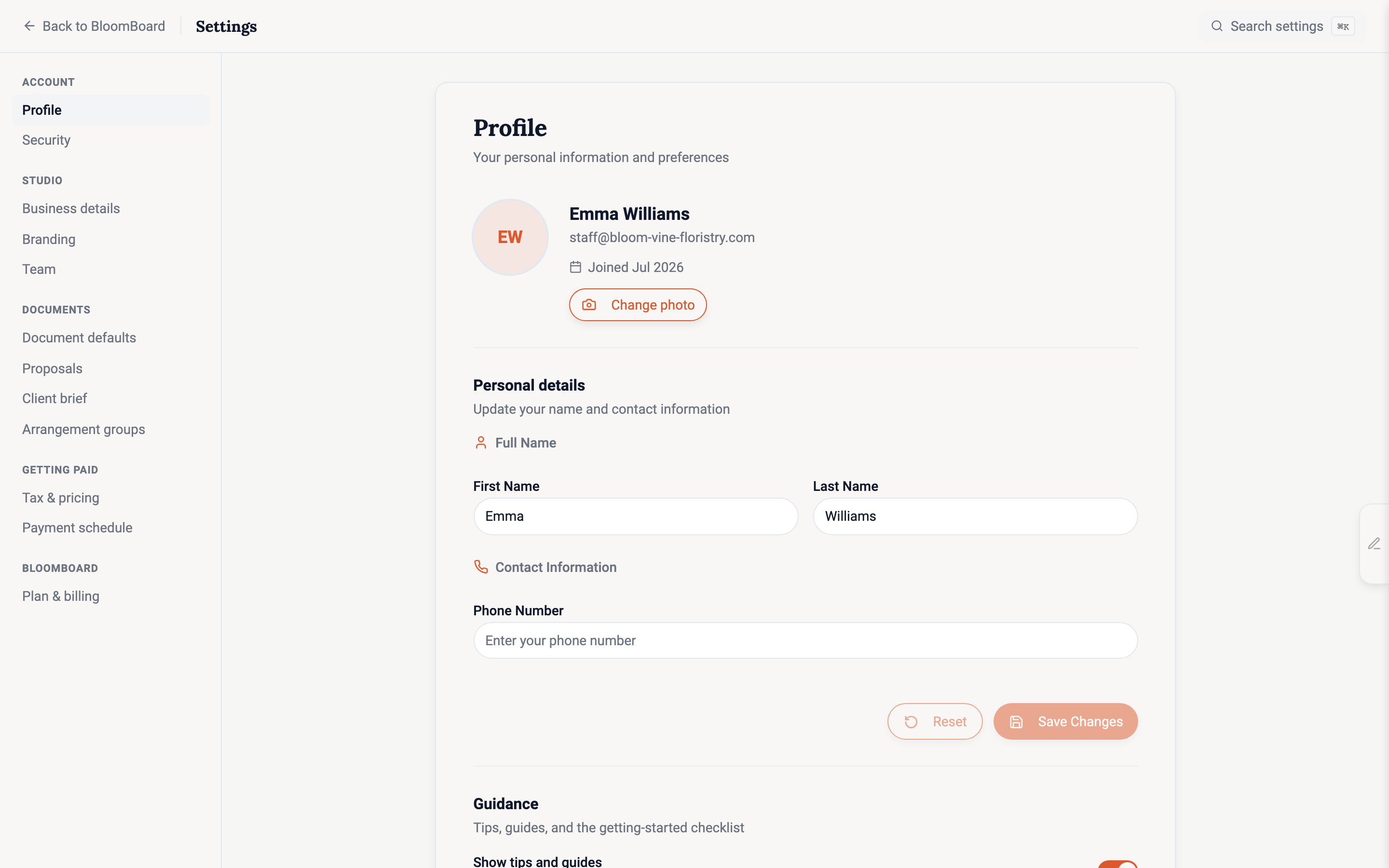
Settings
Account
- Profile: your name, avatar (if you signed in with Google, your Google photo is used until you upload your own), and the guidance controls, including the switch for tips and the option to restore the getting-started guide. If you agreed at sign-up that BloomBoard may share your name and email address with the person who recommended BloomBoard, Sharing your contact details shows that here, with Withdraw consent. See Sign up and get started.
- Security: password and active sessions, including signing out other devices. Each session names the browser and the system, such as “Safari on iOS”, with a phone or computer icon. A session that started before this label existed can keep an older label until you sign in again on that device. A password change or a password reset signs out your other devices and stops notifications on every phone where you use the BloomBoard app, until you sign in there again. A first Google sign-in before you had confirmed your email address does the same. The phone you change the password on keeps its notifications.
BloomBoard
- Plan & billing: your account details, subscription and usage, payment methods, and billing history, all on one page.
- Members: who can sign in to this account, and pending invitations, together on one page. Select Invite member to invite a teammate as admin or staff. This is different from the Team page in the Directory, which is the roster of people who work your events. Members was under Business until November 2026. See Manage seats and account roles.
- Your data: download a complete copy of your workspace, records, documents, and images, whenever you want. See Export your data.
Connected apps
These pages appear when the matching feature is on for your account. Each one links something that belongs to you personally, not to the studio.
- Email: connect your own Gmail or Microsoft 365 mailbox (Studio plan) so client email sends from your address and replies land in it, set the signature added under every email you write from BloomBoard, and paste the booking link your saved emails can use. Your daily digest, by email or WhatsApp, is set in Customise on Today.
- Calendar: add your events to iPhone, Google or Outlook Calendar with your own private link, choose whether proposals and leads show, and make a new link. See Add your events to your phone’s calendar.
- WhatsApp assistant: link your phone number to talk to your assistant on WhatsApp, save the assistant’s number to your contacts, and tick the Alerts you want on WhatsApp: Proposal accepted, Payment received and New enquiry. A password change or a password reset unlinks the phone, and so do signing out of every session, changing your WhatsApp number, and a first Google sign-in before you had confirmed your email address. The page then says why the phone was unlinked. Select Link your WhatsApp to link it again. Leaving a studio, or being removed from it, unlinks the phone from that studio. If the studio adds you back, link the phone again. If your phone talks to another of your studios, the page names that studio. See Use the assistant on WhatsApp.
- Canva: connect your Canva account to import designs into proposals and keep them synced, and disconnect it again. See Bring your Canva designs into proposals.
- ChatGPT and Claude: see and disconnect the assistants that can read your studio. Owners and admins see every member’s connections; staff see their own. A connected assistant never sends to your clients, takes payments or deletes anything. See Connect BloomBoard to ChatGPT or Claude.
Bookmarks and links to old addresses still work. A page that moved opens where it is now: the old Members address opens Settings → Members, the old Payment schedule address opens the Payment schedule on Proposal settings, and the old What clients see tab opens What clients see. The old Groups and pieces address opens the Pieces row on Enquiry form. A link to the old Client brief page opens the page that holds that part now: Enquiry form, Price guide, Forms or Stages.