Assign items to suppliers
Orders turns the recipes you already built into supplier orders. You choose who supplies each item, check what each line will cost, and send every supplier a clean list of what to deliver. When a recipe changes later, Orders tells you what moved and suggests the fix.
When to use this
- The client has accepted the proposal and you are ready to order stems, sundries and rentals.
- A recipe changed after you placed orders, and you need to adjust them.
- A supplier sends a quote, runs short, or asks for the order as a text.
What you need first
- Recipes on the event. Orders reads every ingredient from the event’s arrangements. With no recipes yet, Orders says No items to order yet and offers Go to Arrangements.
- Your suppliers. Use the ones in your directory, or create a supplier from Orders without leaving the page.
- Usual suppliers, if you use them. An item with a Usual supplier in the Library arrives on that supplier’s order sheet by itself. See Add and price library items.
- Prices, if you have them. Library prices and prices you set in the event’s recipes fill in on their own. You can type a supplier’s quote at any time. Nothing has to be priced before you start assigning.
How an order comes together
Orders is a live view of your recipes. It adds up each item across every arrangement, rounds up once to whole bunches or boxes, then you give each item a supplier. Nothing is copied by hand, so when a recipe changes, the numbers in Orders change with it.
Recipes
Each recipe lists its stems, sundries and rentals.
To assign
Orders adds each item up across every arrangement.
Order sheets
One card per supplier, with quantities, prices and a delivery date.
Your supplier
A PDF order sheet or a copied list, with quantities and no prices.
Find your way around
Open the event, choose Production, then Orders. The number on the Orders tab counts the items that still need a supplier. From the event’s other tabs, Production shows the same count as to order. The page has three columns.
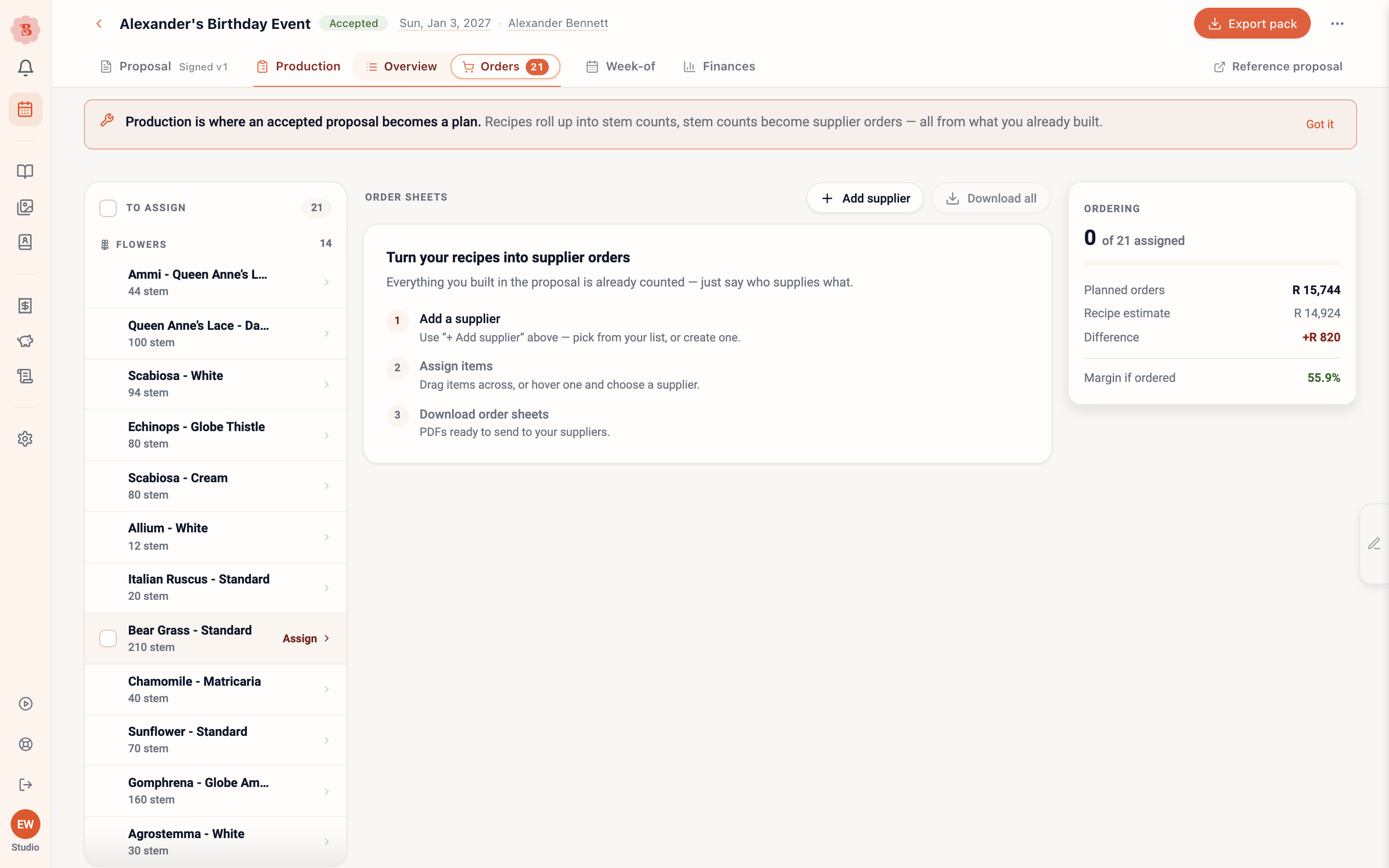
- To assign. Every item the recipes need, grouped into Flowers, Rentals and Other, with its total quantity.
- Add supplier and Download all. When something has changed since you assigned suppliers, Download all reads Review N changes first.
- Order sheets. One card per supplier, with a row for each item.
- Delivery date, copy and download for that supplier.
- Ordering. Your progress, and what the plan will cost.
- Attention. This card appears only when something needs you.
Step-by-step walkthrough
Add your suppliers
Choose Add supplier above the order sheets. Pick a supplier from your list, or choose New supplier… to create one here.
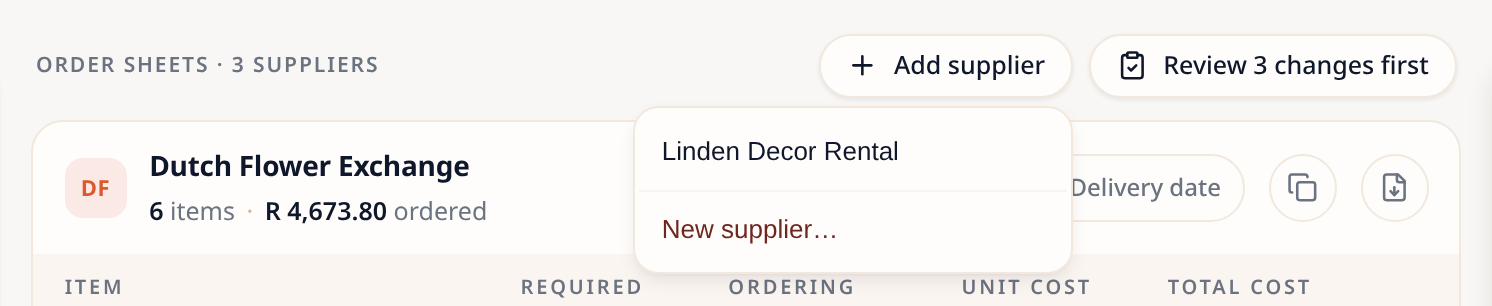
The menus in To assign offer only the suppliers that have a card here, so add a supplier before you assign anything to it. Every supplier that already has items on this event has a card.
A new card is empty and says Not saved yet. A supplier stays on the order once it has at least one item, so an empty card is gone after a reload.
Check what your usual suppliers took
An item with a usual supplier in the Library is already on that supplier’s order sheet, for its full quantity. Items without one wait under To assign.
This happens once for each item on each event. If you move the item to another supplier, or send it back to To assign, Orders keeps your change and does not put it back. Your change applies to this event only. The usual supplier in the Library stays the same.
Assign items one by one
Hover a row in To assign, then choose a supplier from the menu that opens beside it. The row’s whole remaining quantity goes to that supplier.
On a phone or tablet, tap the row to open the menu, then tap a supplier. The menu closes after each pick.
The menu stays open for the item that slides into the same spot, so you can work down a list without moving the pointer.
If you prefer to drag, drag the row onto a supplier’s card. The card lights up when you can drop.
Assign several items at once
Hover a row and tick its box. Once one box is ticked, click any other row to add it. The header of To assign changes to N selected and Assign to…. Choose the supplier. The box in the header selects every item, or clears your selection.
On a phone, each item’s checkbox is always visible. Tick several, and the N selected and Assign to… bar stays at the top while you scroll.
Split an item between suppliers
Do this when one supplier cannot cover the whole quantity. Hover the row, move to the supplier in the menu, and choose the split icon at the end of that supplier’s line. Enter how many that supplier sends, then choose Assign.
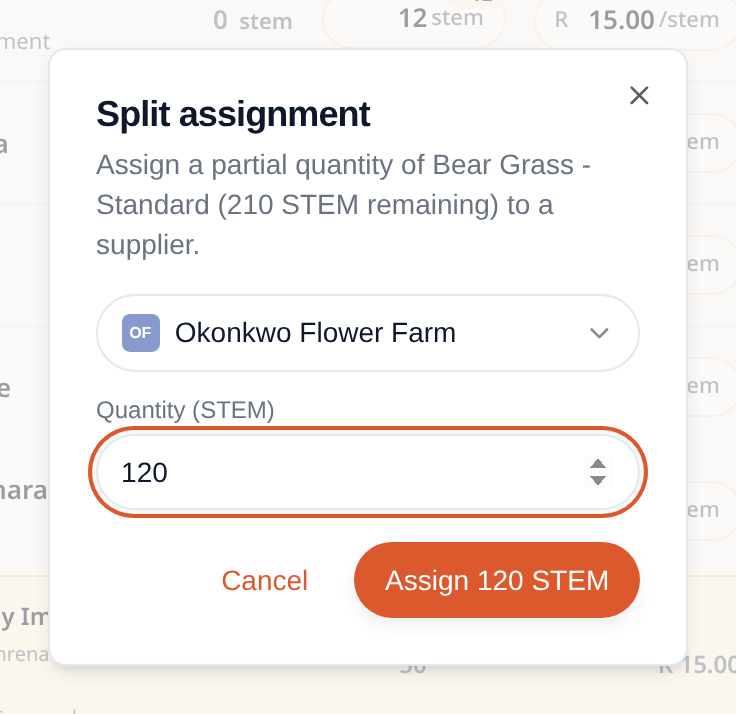
The rest stays in To assign. After a split of 120 from 210, the row reads 90 of 210 stem to assign. Assign the rest to another supplier the same way.
Check each line
Each row on a supplier’s card is one item. Here is what the columns and marks mean.
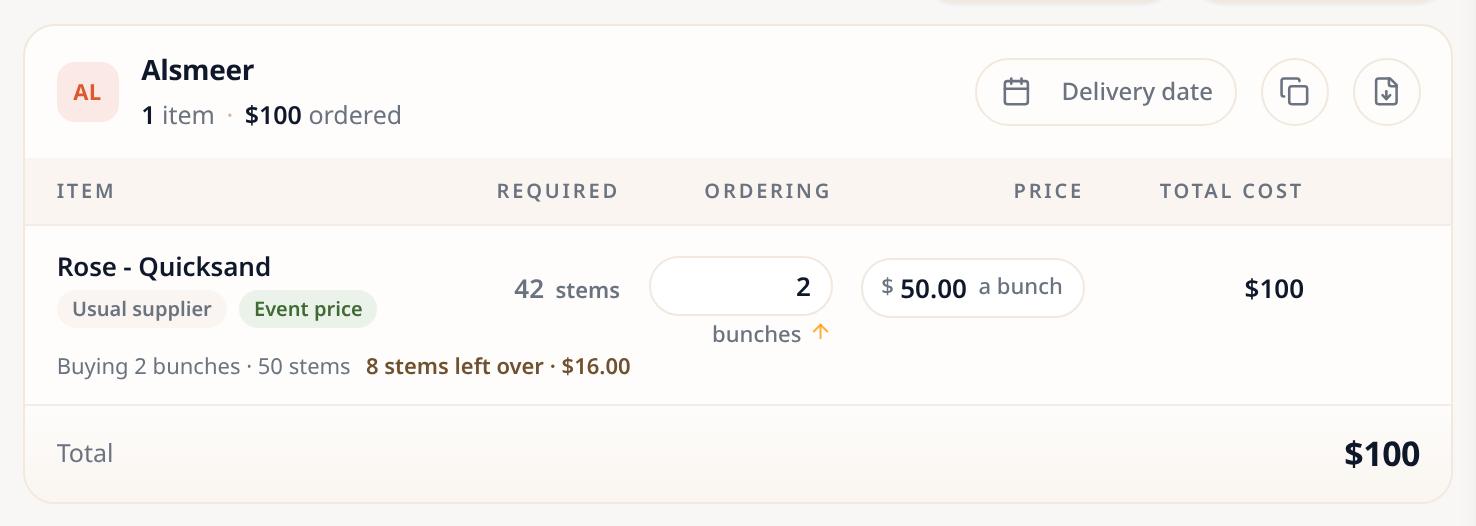
- Delivery date, copy and download for this supplier.
- Ordering is what you order from this supplier. Required is what the recipes need. Click the Ordering amount to change it, then press Enter. Lower it, and the difference goes back to To assign. Raise it above what the recipes need, and a small + figure shows the extra.
- Unit cost. Click it to type the supplier’s price. See the next step.
- Not needed by any arrangement. The item left every recipe, but this supplier still has it. Decide in the review whether to remove it or keep it as extra. See When recipes change.
- Replaced. Part of this line comes as a substitute. See Substitute an item.
- Event price. This line uses the price set in the event’s recipes.
Each price says what it is the price of. A bunch row shows “$50.00 a bunch” or “$2.00 a stem”, and a box row shows “$18.00 a box” or “$1.50 each”. When you type a price on a bunch or box row, type the price of one bunch or box.
Hover an item’s name to see where the quantity comes from: each arrangement, how many it needs, and the total.
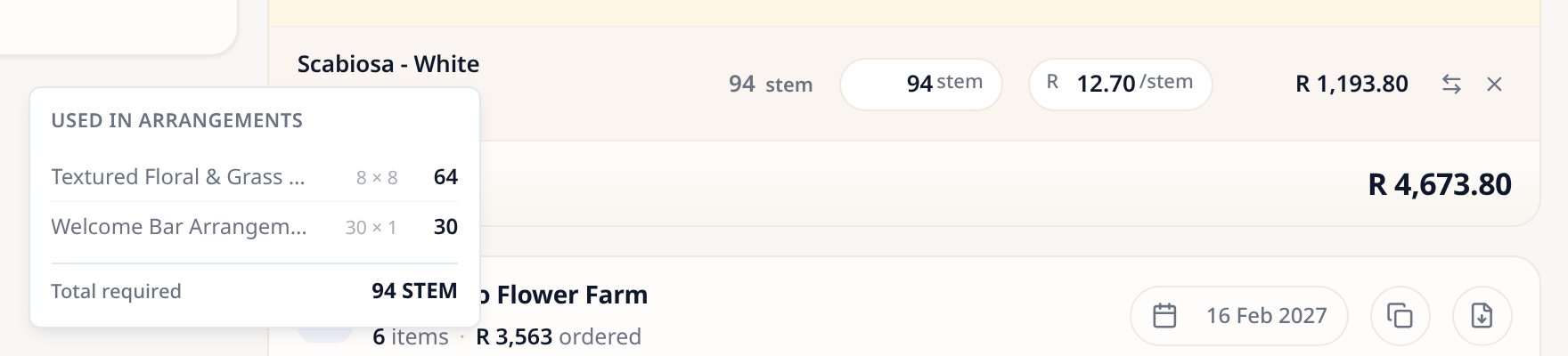
Hover a row to show its actions at the end: Substitute (two arrows) and Unassign (the cross). Unassign sends the whole quantity back to To assign. To move a line to another supplier, drag it onto their card.
Record what each supplier charges
Every line uses the first price it finds. A price you type on the line wins. Without one, the line uses the event price, then your library price. With none of these, it has no price yet.
A price you type on the line
Wins over everything below. It changes nothing outside Orders.
The event price
The price you set for this item in the event’s recipes.
The library price
Your usual price for the item.
No price yet
The unit cost reads Set and the total shows a dash.
To type a quote, click the unit cost, enter the price, and press Enter. The quote is in the event’s currency. It is used for ordering only: your recipes, the event price and your library keep their own prices.
A line that uses the event price shows a green Event price tag. Hover it to see where the price comes from and, when your library has a different price, the library price.
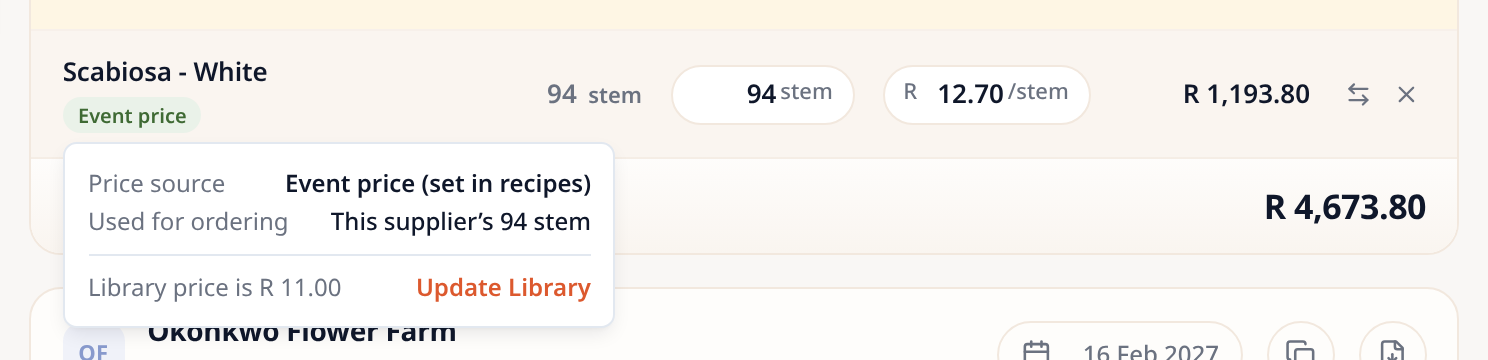
Update Library copies the event price into your library. It is the only way Orders ever changes a library price, and only when you click it. Your library keeps one currency, the one in your account settings. When the event price is in another currency, the link is off and the card says so, for example This quote is in USD; the library is in ZAR.
A rented item skips the event price and uses its supplier hire cost from your library.
Substitute an item
When a supplier cannot send an item, record what they send instead. Hover the line and choose Substitute. Search for the replacement, then enter how much of the original it replaces, how much the supplier will send, and the price.
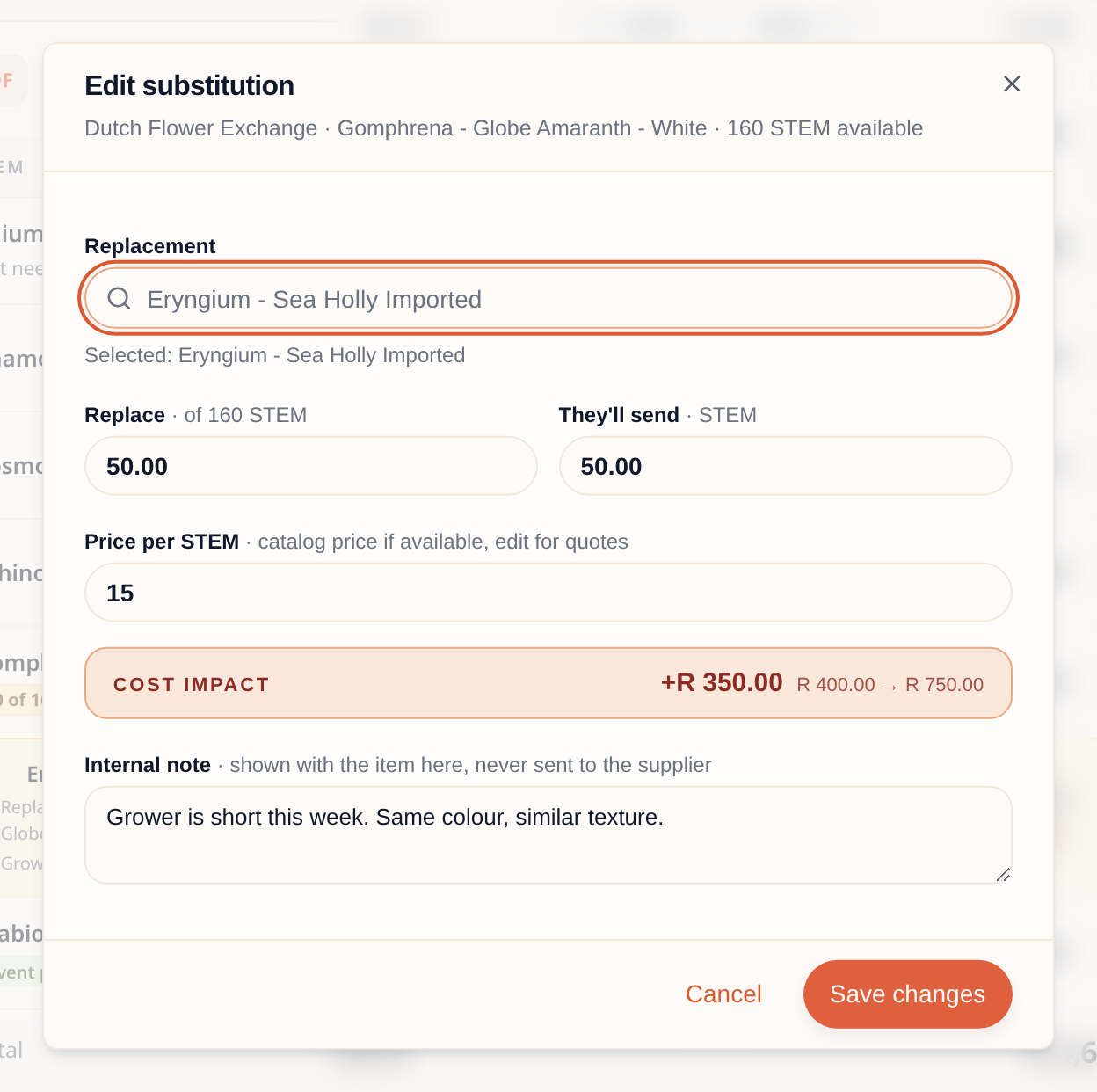
- Cost impact compares the replaced quantity at its old price with the substitute at its new price.
- Internal note shows on the line for your team. It never goes to the supplier.
A partial substitution shows N of M replaced on the line, with the substitute on its own row underneath. A full one shows Replaces and the original item’s name. To undo a substitution, choose the circular arrow on its row.
Send each supplier its order
On a supplier’s card:
- Delivery date sets the day you want the delivery. It prints on the order sheet.
- Download makes the supplier’s order sheet as a PDF.
- Copy puts the list on your clipboard as plain text, for a text message, an email or a DM.
Download all makes every supplier’s sheet at once and saves them in one ZIP file. It waits while there are changes to review.
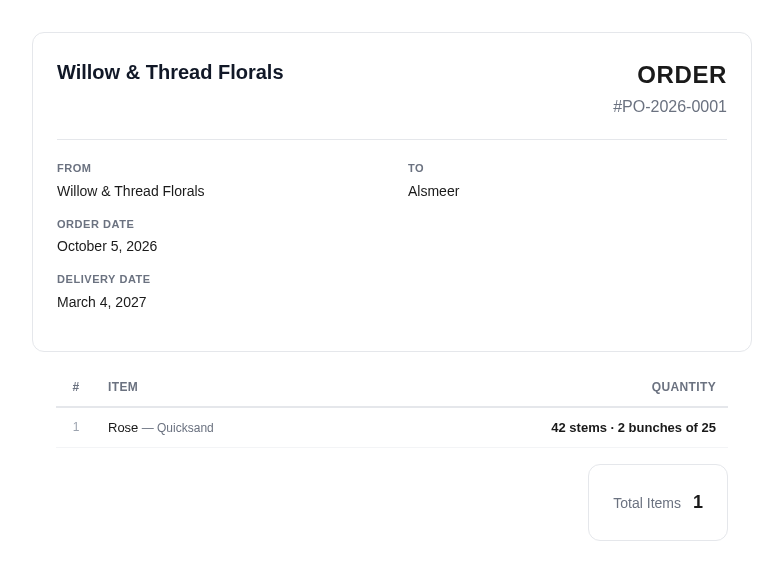
This is what a supplier receives: your studio name, an order number, the order and delivery dates, and each item with its unit and quantity. A line bought in bunches or boxes says what you need and how many to send, for example “42 stems · 2 bunches of 25”. There are never prices on it.
A copied list looks like this. Paste it and add your own note.
Okonkwo Flower Farm order:

30 stem x Agrostemma - White
50 stem x Ammi - Queen Anne’s Lace
80 stem x Nigella - Dried
If you change a line after you send an order, download or copy it again and send your supplier the new version.
Watch the money
The Ordering card on the right keeps score while you work. Every change you make updates it at once.
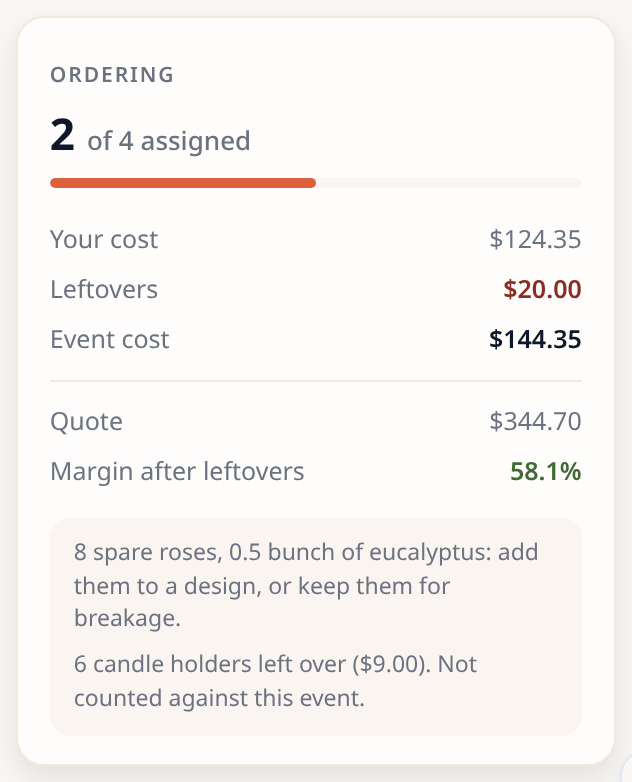
- N of M assigned counts items whose whole quantity has a supplier. A partly assigned item still counts as to assign.
- Your cost is what the event costs you before leftovers: what the recipes use, hired items and services, at this event’s prices. It is the same figure as Your cost on the proposal.
- Leftovers is the cost of the stems and bunches you buy but the recipes do not use, because Orders buys whole bunches. It counts the items in categories set to Add to event cost, such as Flowers and Foliage.
- Event cost is Your cost plus Leftovers.
- Quote is the client’s price.
- Margin after leftovers is the share of the quote that you keep after the event cost.
Your cost
What the recipes, hired items and services cost.
Leftovers
Stems and bunches left over after rounding.
Event cost
What this event costs you.
Spares in a category set to Keep for later, such as the rest of a box of candle holders, are not counted against the event, because you keep them. The card says how many are left over and what they cost. See Stems, bunches and leftovers.
A supplier quote or a substitution changes the price a line uses, so it moves these figures. Your recipes and the accepted quote stay as they are.
Orders never guesses a price or converts a currency. When a line has no price yet, or a saved price is in another currency, the Ordering card shows no total it cannot trust: it asks you to review missing prices and supplier currencies instead. Price the line in the event’s currency, and the figures come back. Margin after leftovers shows only when there is a quote and every cost is in the event’s currency.
When recipes change: review before you order
Recipes change after suppliers are assigned. Orders compares what the recipes now need with what you planned, and lists every difference in one place.
- The Attention card shows N items to review, with a Review N items button.
- Download all reads Review N changes first until you decide.
The recipes now need more or less than you planned.
The item left every arrangement, but a supplier still has it.
The lines order more than you planned.
Open the review from either button. Each row names the item, says what changed in plain words, and arrives with the suggested choice selected.
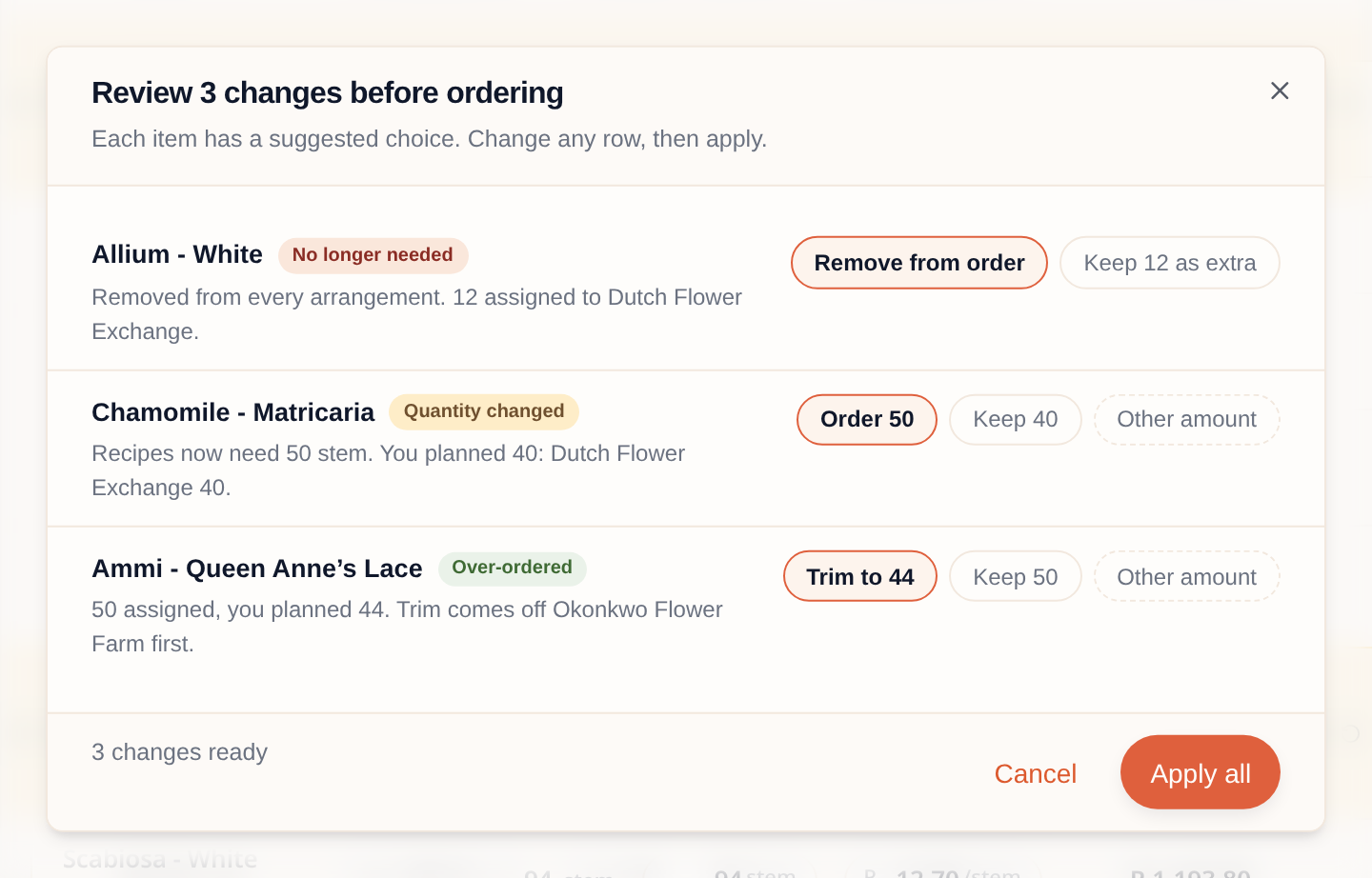
- Quantity changed offers Order the new amount, Keep what you planned, or Other amount. When you order less than you assigned, every supplier’s line shrinks in proportion. For an item split between suppliers, the row shows the new split.
- No longer needed offers Remove from order or Keep as extra. A kept line stays on the supplier’s card as Not needed by any arrangement, with Required 0, and still counts in the supplier’s total. An item that had no supplier yet needs no decision: it simply leaves To assign.
- Over-ordered offers Trim to what you planned, Keep the larger amount, or Other amount. A trim comes off the largest supplier line first. This row also appears when you raise a line’s quantity on purpose. Choose Keep and Orders stops asking. Rounding up to whole bunches or boxes is not over-ordering: 50 stems for 42 needed, in bunches of 25, does not show here.
- Other amount lets you type your own figure. Items bought whole, like stems, take whole numbers only.
Choose Apply all to save every row at once. If something changed while you were deciding, nothing is saved: the dialog marks the rows to check, and you apply again. If you close the dialog after changing a choice, it asks Discard your changes? first.
Two quieter lines can also appear on the Attention card. They have no button of their own:
- N items planned with extra quantity: you plan to order more than the recipes need.
- N items ordered short: you plan to order less than the recipes need.
Items still waiting in the review count here too, until you decide.
Prices in another currency
BloomBoard never converts money. A price saved in a currency other than the event’s stays exactly as it was entered, and the line says so, for example Saved price is in USD. New quotes use ZAR.
- The line’s price shows as it is. Nothing is converted.
- The supplier’s total reads Unavailable, and the Ordering card stops comparing. Two currencies are never added together.
- To bring the line back into the totals, type a fresh quote in the event’s currency. It replaces the old price.
Items you buy in packs
When your library buys an item in bunches or boxes, Orders adds up the item for the whole event, then rounds up once to whole bunches or boxes.
- Items in a category set to Add to event cost, such as Flowers and Foliage, show what is left over, in stems and in money, for example “8 stems · $16.00”. This cost comes off your margin.
- Items in a category set to Keep for later show what is left in the box, for example “6 left in the box”. Cost to event counts only what the recipes use, so the spare items are not counted against the event.
Each category’s leftovers choice is set in Business → Categories and markups. See Categories and markups.
Hover the small arrow next to the quantity to see the rounding, and to change the pack size for this order only. Leftover money uses the same price and pack size as the line.
Rentals
Items you rent from a supplier wait in their own group in To assign, whether they sit inside a recipe or on the event by themselves. Until you assign a supplier, a rented item is estimated at its supplier hire cost for the rental period the event’s dates give it: a per-day rental on a three-day event counts three times.
Items your studio owns are never ordered, so they do not wait in To assign. Production lists them under From your stock, with the quantity each event needs.
What happens next
When every item has a supplier, To assign reads All N items are on order sheets and the progress bar fills. You can still change quantities: lower one, and the rest goes back to To assign.
- Plan deliveries, timings and your team in the Week-of view.
- Order sheets are also in the event’s export pack. See Export documents and packs.
- Ask the assistant “what is on my wholesaler’s order for the Hart wedding?” or “make the roses 83”. It changes the order with Undo; it never sends the order sheet.
Common questions
Why did a supplier disappear after I reloaded? A supplier card is saved with its first item. Add the supplier again and assign an item to keep it.
Why is an item already on an order sheet on a new event? The item has a usual supplier in the Library. Move it to another supplier if you need to. Orders keeps your change for this event.
Why do leftover stems cost me money? Suppliers sell whole bunches, but the client pays for what the recipes use. The difference is your cost, so Orders shows it before you order.
Why can’t I choose Download all? Something changed since you assigned suppliers. Choose Review N changes first, decide, then download.
Why does the Ordering card show Unavailable, or no totals? A line has no price yet (its unit cost reads Set), or a price is in another currency. Type a quote in the event’s currency on that line.
Can my supplier see my prices or notes? No. Order sheets and copied lists carry items and quantities only. Substitution notes stay on your screen.
Does a quote I type change my recipes? No. Quotes are for ordering. Only the Update Library link changes a library price, and only when you click it.