Work the events board
When to use this
Use this guide to get the most out of the Events page: seeing where every job stands, moving events through the pipeline, and keeping the list clean.
The first time you open the board, a short video tutorial sits at the top. Watch it in place, or choose Got it to put the card away. After that, the Tutorial button in the toolbar keeps the video one click away from any view, and it always plays right on the page.
Three ways to see your events
The Events page has three views, and it remembers which one you were using:
- Kanban is the default: columns for each stage, cards you can drag.
- List is a sortable table with a status control on each row.
- Calendar lays events out by date, month or week. Hover a day for a summary, and double-click a day to start a new event with that date already filled in. Weeks start on Sunday when Units and dates is US and on Monday when it is Metric. Date pickers across BloomBoard follow the same rule. See Venue addresses and weather.
Search works in every view. It looks across client names, event names, venue names and cities, coordinator names, and your event notes. A few things it handles for you:
- Several words narrow the search. Type “sarah constantia” to find Sarah’s wedding at Constantia Glen, even though those words live on different parts of the event.
- Close counts. A small typo (“sarha”) still finds Sarah when nothing matches exactly, and accents don’t matter: “zoe” finds Zoë.
- Best matches first. While you’re searching, results are ordered by how well they match, with name matches at the top.
While a search is active, cards on the board can’t be dragged. Clear the search to reorder again.
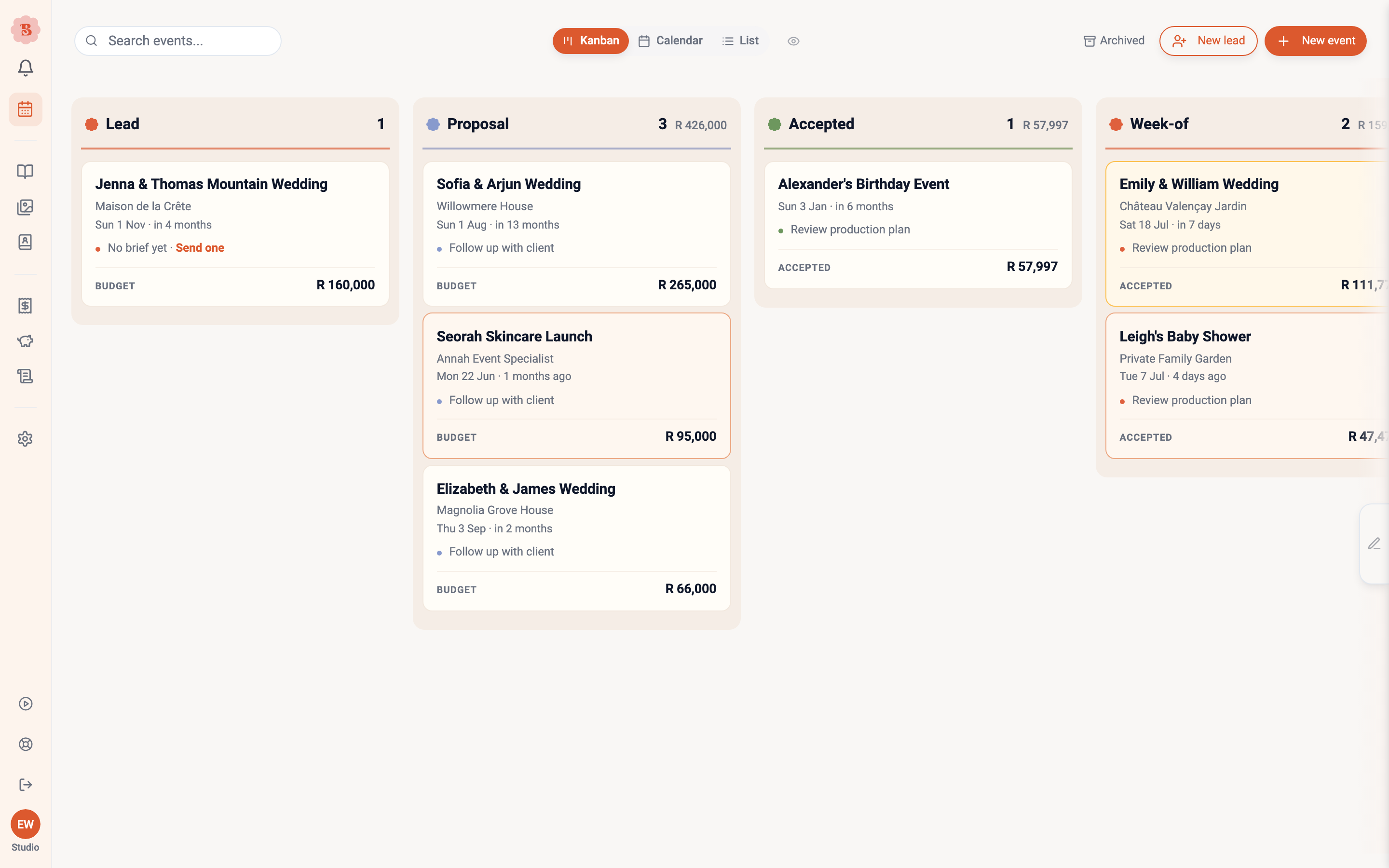
Reading the cards
Event cards carry the signals you need at a glance:
- lead cards suggest the next step, such as sending a client brief
- proposal cards show chips when the client has viewed, requested changes, declined, or let the proposal expire
- the money figure is always labeled: Budget before acceptance, Accepted once a proposal is signed
- each column totals its events’ money at the top
Moving events along
Drag a card between columns to change its status, or use the card menu if you prefer not to drag. Only sensible moves are offered. The Week-of column fills by itself in the week of delivery, so you never drag into it.
Events that are mid-setup resume where you left off when you open them.
Updating event details
The core details you entered during setup stay editable afterwards. Choose Edit from a row’s menu in the list view, or Event details from the menu in the event workspace, to change the client, event name, date, venue, coordinator, status, budget, guest count, delivery and setup addresses, delivery time, and the on-the-day contact. The guest count field matches the event type — a wedding asks for Guest count, a corporate event for install areas. Changes flow through to wherever the detail appears, including the production view’s wedding details and the client-facing proposal.
The event type is chosen when you set the event up; Event details does not change it. To change it later, ask the assistant, for example “make this a corporate event”.
Bulk actions and export
Select several events (or all) to change status in bulk, archive completed and canceled work, or export to CSV for a spreadsheet.
On a phone, tap Select all above the events in List, or tap the circle on each event. The bulk actions sit in a bar at the bottom of the screen.
Duplicating an event
Use an existing event as the starting point for a similar job:
- On the Kanban board, open the card menu and choose Duplicate event. In List view, open the row menu and choose Duplicate next to Edit.
- Wait for the Event duplicated message. The new card appears in Lead, and the original event does not change.
The copy includes the client, date, venue, budget, options, arrangements, images, notes, and a draft proposal. It starts with a fresh proposal version
- A date in the past becomes Date TBD. Invoices and payments are never copied.
You can also ask the assistant to duplicate an event, with a new name or date. Undo on its receipt archives the copy.
Archiving
Archiving removes an event from the working views without deleting anything. The Archived events page keeps the full table, and any archived event can be restored.
You can archive straight from the board: open the menu in a card’s top corner and choose Archive event. The same action lives in the event workspace’s menu, and the list view can archive completed and canceled events from the row menu or in bulk. Whichever way you start, the same confirmation appears before anything moves.
Archiving never touches your money. The event’s invoices stay in Documents and keep counting in your finances. If the event still has live invoices, the archive confirmation lists them so nothing surprises you, with a one-click option to void the unpaid ones. Paid invoices keep counting toward income until you void them (remove their payments first).
Archiving an event or moving it to Canceled pauses its automatic proposal and client-brief reminders. It also makes an outstanding proposal’s signing link unavailable to the client. Restore the archived event, or move the canceled event to another column, to resume reminders and make the same proposal link work again. A proposal the client already accepted stays available as their signed record.
If an outstanding proposal exists, the archive confirmation shows its version and status. You can archive without voiding it, or choose Void proposal to cancel it permanently. Restoring an event does not bring a voided proposal back.
On your phone
On a phone, the Events page has its own layout. The top row shows Events, a view button (Board, Calendar or List), a search button and New.
- Stages: the board shows one stage at a time. Tap a stage name in the row of tabs to switch. Tap the selected tab again to go back to the top.
- Next step: each event ends with its next step, such as Send a brief (Send a form when forms are on), Review, Mark as replied or Continue. Tap the button to do it.
- Event actions: tap ⋯ on an event to move it to another stage, duplicate it or archive it. When your board uses stages, you can also mark it as lost. After a move, tap Undo in the message to put it back, or Show to open that stage.
- Sort and stages: tap Sort to sort a stage by Custom order, Event date, Client name or Value. Tap the chosen sort again to reverse it. When your board uses stages, owners and admins can also rename, recolor, add and move stages there.
- View: tap the view button to switch to Calendar or List. On the board, Stages to show picks the stages you see. You also find Archived events and Tutorials for this page there.
- New: tap New, then New event to set one up yourself, or New lead to add a client and send them your brief or form.
- Search: tap the search button and type. The stage tabs count the matches. Tap Cancel to go back to the stage you had open.
- Calendar: tap a day to see its events under the month, then Add event to start one on that date. The week shows as a list of days.
Keep the board honest. If a job dies, cancel it rather than letting it sit in Lead forever; if it is delivered, complete it. Reporting and the pipeline totals are only as good as the statuses underneath them.