Revise a sent proposal
A proposal locks when you send it, so the client always sees exactly what you approved. To change it, you make a new version, check it, and send it.
Sent or signed
The client’s copy. It does not change.
Create revision
A copy of v1 that you can edit.
Make the changes
Edit the draft, or add changes you made in Production.
Send update
The client gets v2. Your history keeps v1.
When to use this
- The client asks for a change after you sent the proposal.
- You changed the event in Production after you sent the proposal, and the client must approve the new scope or price.
Two ways to start
The client asks for a change.
You changed the event after you sent the proposal.
Start from the proposal page
Open the event and choose Proposal. A sent or signed proposal is locked.
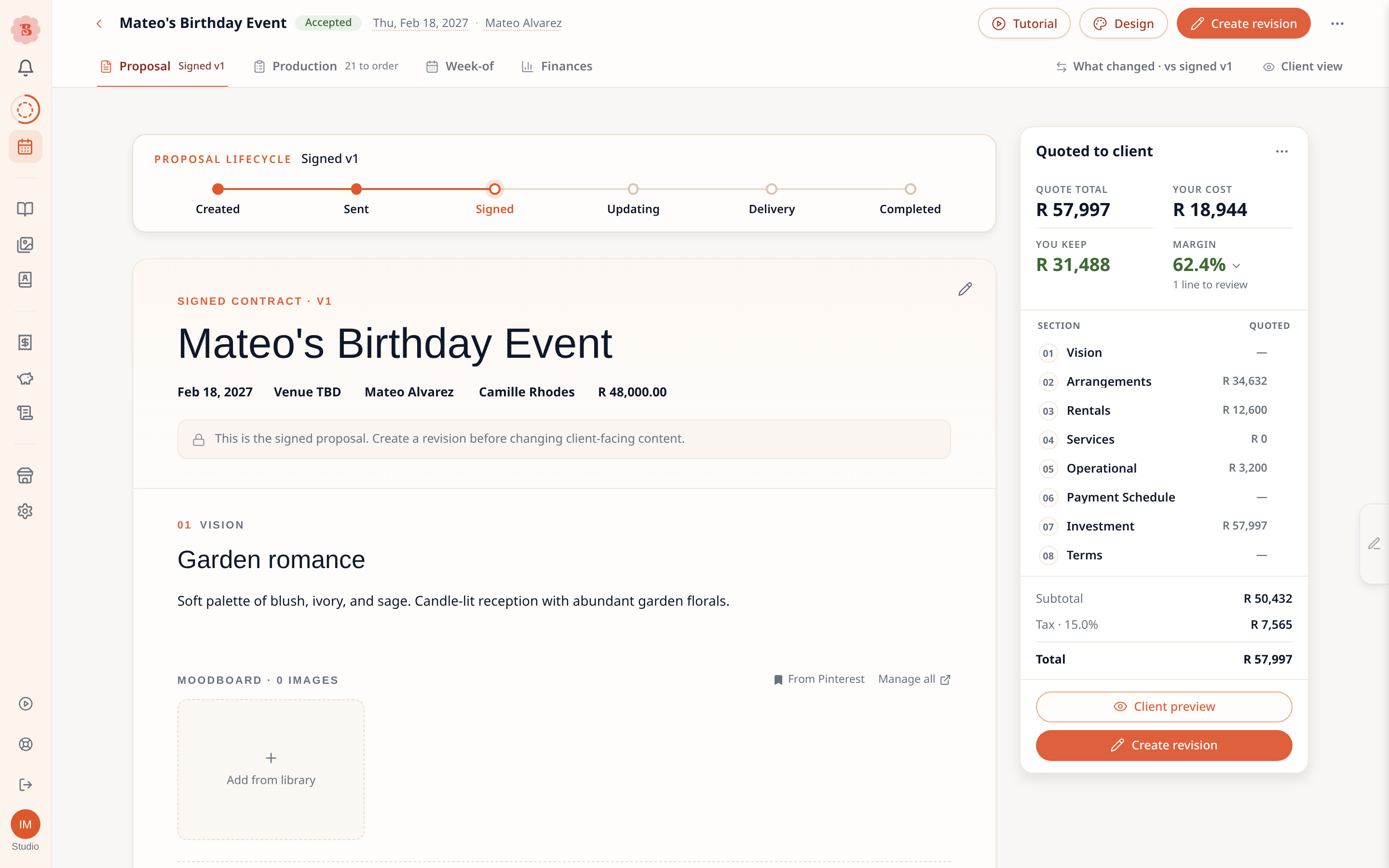
- Create revision starts the new version.
- The lock note tells you why the page does not change.
- The same button is also in the summary panel.
The new version opens as the same document you sent. Its design, footer, page setup, your text edits, photo choices, extra pages and payment schedule all come with it. Edit it like any proposal. The version the client has stays as it is.
Start from Production
When you change an event in Production after you send the proposal, the client does not see that change yet. A card at the top of Production lists each change: a new quantity, a new price, or an item you added or removed.

- Where the revision stands. Revision needed means there is no draft yet. Revision in progress means a draft is open.
- What changed, for example Quantity 3 → 8.
- The effect on the quote.
- In new quote or Held at quoted. You see this when a draft is open.
- Create proposal revision, or Review draft when a draft is open. Both open the draft at the first change.
Add changes to the new quote
A new draft starts as a copy of what the client has. Each change from Production waits on its line until you choose it.
You change the event
For example, a quantity from 3 to 8.
Held at quoted
The draft keeps the value the client saw.
Add to new quote
You choose each change, line by line.
In new quote
The client sees it when you send.
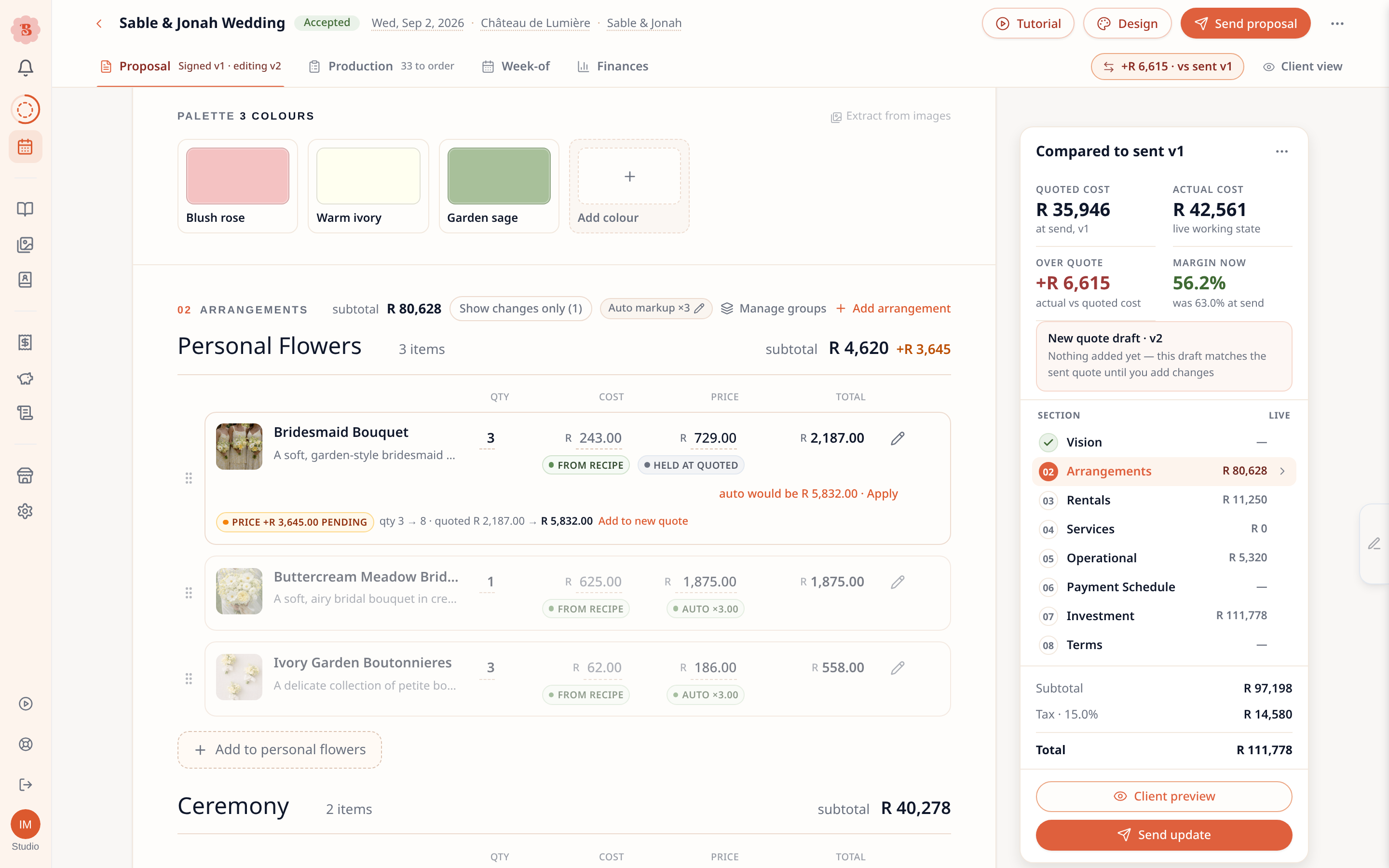
- What changed is on. It compares the draft with what the client has.
- Held at quoted. The line still shows what the client saw.
- Add to new quote puts the whole line, as it is now, into the new quote. To take it out again, click undo.
- New quote draft says what the new quote holds so far.
- Send update sends the new version when it is ready.
Items you added or removed in Production are in the draft already. They need no click.
A change you do not add stays out of the new quote. The client keeps the value they saw, and the difference shows only in your own numbers.
If you come back to the draft later, click What changed at the top of the page to see the changes again.
You can also ask the assistant to add the changes held at the price your client saw to the new quote, for example “add the extra centerpieces to the new quote”. It names what it added, and Undo takes them back out.
Send the new version
Click Send update, then send it the way you send any proposal. See Create and send a proposal. The client always sees the latest version. Your history keeps every earlier version, marked Superseded.
Changes since you signed is switched on for studios a few at a time. When it is on for your studio and the client signed an earlier version, their page shows Changes since you signed above the new version. It lists the lines, the total, the event date and the venue that changed since the last version they signed, and shows a price only where your proposal shows prices to the client. The list is fixed when you send. Your own compare view keeps the name What changed. See Client hub.
What to remember
- A sent proposal never goes back to draft. You always edit a new version.
- The client can ask for changes on their review page. This marks the proposal for a revision.
- A signed proposal is locked. To change it, send a new version for the client to approve.
- In the design studio, a sent proposal opens for viewing only. Make a revision on the bar at the top starts the new version.
- If a photo was deleted from your library since the last version, the new version uses the arrangement’s current photo. If the arrangement has no photo, Checks stops the send with “Photo missing on” the item until you add one.