Add and price library items
When to use this
Use this page to understand the Library: the priced catalog of flowers, supplies, and the items you own or rent, that your recipes and proposals draw from.
Adding an item
Add item opens a single guided card, and saving returns you straight to the list. Give the item a name and a Category. The category list shows your own categories, and Manage categories at the end. Manage categories opens Business → Categories and markups. If you typed something in the card, BloomBoard asks before it leaves. See Categories and markups. Then fill in each variety or type card (see Varieties and types):
- How will you use this item?: Used up or left with client, Studio-owned and reusable, or Rented from a supplier. The price fields follow your answer. See How you use the item.
- How do you measure this in recipes?: the answer is how your recipes count the item, not how you buy it. You can buy roses by the bunch and still use them by the stem.
- The price: the price for the way you use the item, as the card asks for it.
- Usual supplier · optional: the supplier you usually buy or hire this item from. See Usual supplier.
As you type, a sentence under the fields says the pricing back to you in plain words. Read it before you save: a wrong bunch size or price is easy to see there.
Varieties and types
An item can come in more than one version, each with its own name and price. For a flower or foliage these are varieties, such as Rose · Quicksand and Rose · Playa Blanca. For a vase or foam they are types, such as Vase · Cylinder 30 cm.
The word follows the item’s category. A category set to Add to event cost, such as Flowers, Foliage or your own Fruit, says variety. A category set to Keep for later, such as Décor, Mechanics and Miscellaneous, says type. An item with only one is named Standard to start with. Rename it whenever you like.
Your Library has one item for each name, and its varieties or types sit under it. To add a new rose, type Rose in Add item even when Rose is already in your Library. The card says “Rose is already in your Library. This adds a new variety to it.” Save changes to Add Miss Piggy to Rose, with the name of your variety. Choose it, and Miss Piggy joins your other roses, in Rose’s category. Orders, search and price imports then find all your roses together. If Rose already has a variety with the name on the card, Add item asks you for another name.
How you use the item
- Used up or left with client. For flowers, foam, ribbon and anything your client keeps. Type the Price you pay, for example “$18.00 a box of 12”. The card shows what your client pays, for example “$1.50 each. Client pays $3.00 each at your Décor markup ×2.0.” Choose View default markups to see your markups for each category on the card.
- Studio-owned and reusable. For your own vases, candle holders and stands. Type the Client hire price, for example “$3.00 per item · per event”: “What you charge for using your own item. Never marked up.” The event pays nothing for the item, so the hire price is all profit. Purchase details · optional keeps What you paid: “For your records. It does not change event costs.” Orders do not include items that you own.
- Rented from a supplier. For things you hire and give back. Type the Supplier hire cost, for example “$1.50 per item · per event”: “What the supplier charges you. Client pays $3.00 at your Décor markup ×2.0.”
Owned and rented prices can be per event, per day or per week. Each category has its own markup, which you set under Business → Categories and markups.
What the recipe question offers first
How do you measure this in recipes? offers two answers first. They depend on the item’s category and on your answer to How will you use this item?:
- Flowers and Foliage, used up: By the stem and By the bunch. This also holds when you rename these categories.
- Every other category, used up: By the item and By the meter (By the yard for a US studio). This includes categories you add, such as Fruit.
- Hired from a supplier or owned by your studio, in any category: By the item and By the meter, so a hire price reads “per item · per event”.
More units always lists every other unit, stems and bunches included. Until you pick an answer yourself, the card follows your category and your use. Once you pick one, BloomBoard keeps it. A used-up variety or type that you add to an item later starts on the item’s Default unit when the card offers that unit, and on the category’s first unit when it does not. A hired or owned one starts on By the item.
By the stem and By the bunch
- By the stem. Recipes count stems. If your supplier sells the flower in bunches, type the number in Stems in a bunch. Leave it empty, or type 1, for loose stems. Then type the Price and use the menu beside it to say if it is the price of a bunch or of a stem. BloomBoard works out the other.
- By the bunch. Recipes use part of a bunch, such as ¼ or ½. This is good for foliage, where the number of stems changes from bunch to bunch. Type the price of a bunch.
For a rose that comes in bunches of 25 at $50.00, the sentence reads: “A bunch of 25 stems costs $50.00, so $2.00 a stem. Orders add up the stems for the whole event and buy whole bunches: 42 stems needed, 2 bunches ordered.”
Stems always come in a bunch, so there is no list of pack names to choose from.
By the item and By the meter
- By the item. Recipes count single items, such as candle holders. If the item comes in a box, a pack or a roll, switch on Comes in a box, pack or roll. Choose the container in It comes in a (Box, Pack or Roll), type how many items are in it, and type the price of the box or of one item.
- By the meter. For ribbon, fabric and garland. Recipes use part amounts, such as 1.5. A US studio sees By the yard here.
- More units. Every other unit, such as By the stem, By the bunch, By the sheet, By the liter, By the foot, and By the yard (a US studio sees By the meter here instead).
For a box of 12 candle holders at $18.00, the sentence reads: “A box of 12 costs $18.00, so $1.50 each. Recipes use single candle holders. Orders buy whole boxes.”
Hour is not a unit you buy. Put labor on the proposal as a service line.
If your studio is in the US, your starter library prices ribbon, twine and wire per yard instead of per meter. Other studios get them per meter.
Items that use an older unit
Nothing is taken away from items you already have. An item that uses a unit outside these lists, such as by the sheet or by the hour, shows that unit as its answer. You can rename it, change its price and save as usual. When you change its unit or its bunch or box, the card asks you to use one of the units above.
Usual supplier
The last field of every variety or type card is Usual supplier · optional. Pick the supplier you usually buy the item from.
- Orders puts the item with that supplier on each new event, once. You can move it to another supplier for any event, and Orders keeps your change.
- Leave it empty to choose a supplier in Orders for each event.
- Changing the usual supplier does not move the item on events that already have it on an order.
- The recipe builder does not show the usual supplier.
- You can also ask the assistant to set an item’s usual supplier.
See Assign items to suppliers.
If Save does nothing
If Save has nothing to do, something is still missing: the drawer scrolls to the first field that needs attention and a note beside the buttons says how many fields to fix. With several variety or type cards, check each one has a name, an answer to the recipe question and a price for the way you use the item.
Currency
Every library price is in your account’s currency, the one under Business. BloomBoard never converts money, so a price in any other currency is turned away with a message naming both currencies. If an older variety or type still holds a price in another currency, type a new price and save: the fresh price is recorded in your currency. A supplier quote on the Orders desk that is in another currency stays with that order and is not copied into the library.
Item images
Each variety or type can carry an image: upload one, drag a photo onto the tile, or Generate image to create one on the spot. Generation runs while you keep editing, and you can reroll it until it looks right. Item photos, uploaded or generated, do not count toward your monthly upload limit. Image generation has its own monthly allowance; the button says so when it is spent. There is also a bulk Generate missing images action for filling gaps across the library.
Editing an item
Click an item to open it in a wide side panel. On a large screen the panel splits in two: the item itself on the left, with its cover image, name, category, default unit, and description; and its varieties or types on the right, each with a large image tile, color, unit and pack, and price. On smaller screens the same sections stack. Hover or focus an image tile for a closer look. Click a row or use its menu to edit, duplicate, set the image as the item’s cover, or delete the variety or type. An item always keeps at least one, so Delete is grayed out on an item’s only variety or type until you add another. On a phone or a tablet, the reason shows in the menu under Delete.
Working in the list
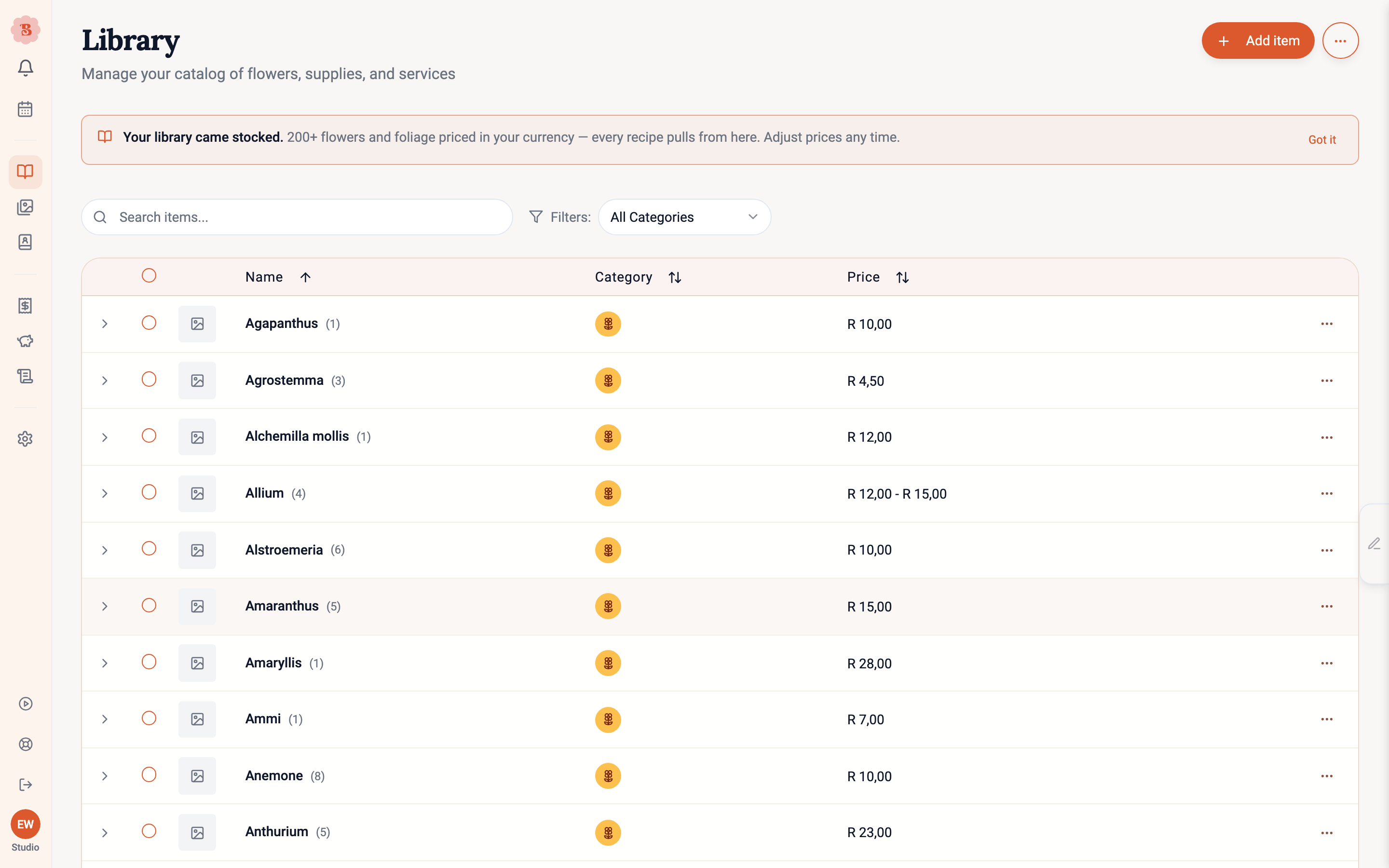
The Price column shows each price with its unit and, when there is one, its bunch or box:
- “$2.00 a stem · bunch of 25”
- “$8.00 a bunch”
- “$1.50 each · box of 12”
- “$0.90 a meter”
- “$3.00 hire per event” for an item you own
- “$1.50 hire per event” for an item you rent from a supplier
An item with several varieties or types shows the range of its prices, or “from” the lowest price when they use different units. Prices use your studio’s number format.
The Category column and the category filter show your own category names, each in its own color.
The Usual supplier column shows the supplier when one is set, and a dash when there is none.
Search, filter by category, sort, and select multiple items for bulk delete (with a clear warning first, since an item’s varieties and types go with it). Deleted items free up their names for reuse, and an undo is offered right after a delete.
On a phone, tap an item to open it. Its varieties or types are listed there. While you select items, the Clear and Delete buttons stay at the bottom of the screen.
You can also create a library item without leaving an arrangement: the ingredient search has a create button that opens the same card and returns the new item ready to select.
Keep the library priced honestly and let recipes do the math. When library prices move, use price import or edit the item; events you have already priced keep their own event price until you decide otherwise. Prices you change inside an event never write back to the library. The only way an event updates the library is the Update Library link in a price popover.