Plan the week of the event
When to use this
Use this guide in the run-up to delivery: the event is booked, the orders are in, and now the days themselves need a plan everyone can follow.
The run sheet
The event’s Week-of view is the run sheet for delivery week. The headline tells you the shape of the plan, and day tabs carry the schedule: prep days, the event day, and strike. Past days tick themselves off, and today is marked.
Everything on this page saves as you go. A new task, a ticked item, or a renamed list shows straight away and saves in the background; if something can’t be saved, it reverts and a message tells you.
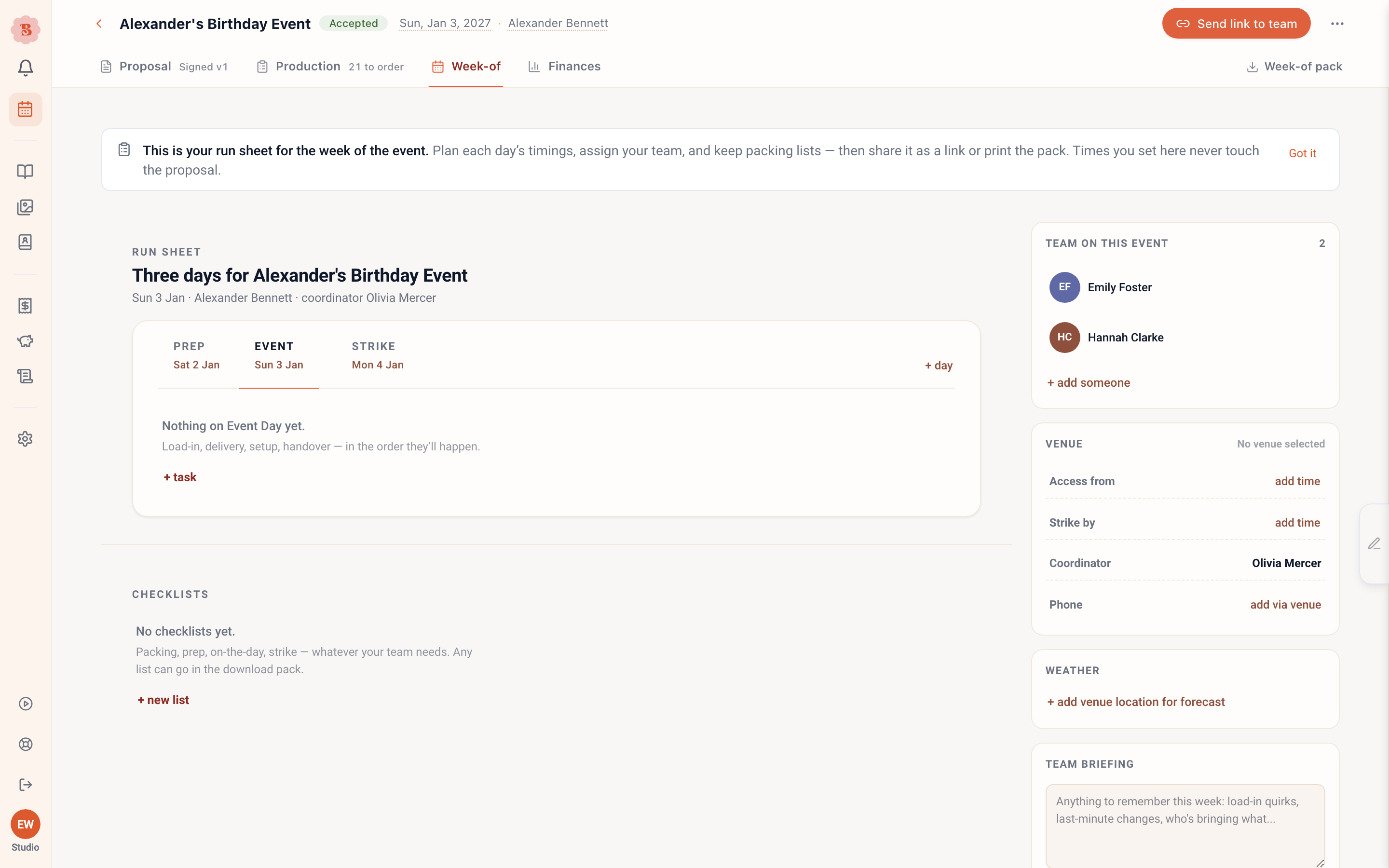
Step-by-step walkthrough
Plan the days
On first visit, one click plans the event day itself. Add more days for prep and strike as the job needs them. Days can be renamed and re-dated later, and a date change moves the day into the right phase automatically.
Remove a day
Select the day, then select its pencil (Edit) and choose Delete day…. Confirm with Delete day. The day’s tasks go with it, and this cannot be undone. A plan keeps at least one day, so the last day has no delete. The Week-of plan itself stays with the event and cannot be deleted; to start again, remove its tasks, checklists and extra days.
Fill each day with tasks
Tasks are simple rows: a time, a title, an optional note, and who is on it. Add assignees from your team roster, drag names between tasks as plans shift, and let the list run the day. On the live day, tasks the clock has passed fade back, and the current task carries a marker.
Run-sheet tasks are not event tasks: they never show in Today or on the event’s Tasks chip. Work with a due date belongs in the event’s tasks; see Task lists.
Add checklists for the fiddly detail
Checklists sit alongside tasks for the things that need ticking rather than scheduling: the van pack, the emergency kit, the table count. Name a new list and press Enter to start its first item; each Enter after that opens the next one, so a whole list can be typed without touching the mouse. An item you leave blank disappears when you click away, and clearing an item removes it. Each list shows its progress and goes green when complete. Switch Team link off on any list you’d rather keep to yourself; everything else shows on the team link, and whoever ticks an item on the day is recorded beside it.
On a phone or tablet, the edit, delete and assign buttons on days, tasks and checklists are always visible.
Confirm the team
The team rail shows who is working which days. Add people from the roster, or create a new team member on the spot. On a computer, contact details are a hover away during the week. On a phone or tablet, each team member’s phone number and email show under their name. Tap one to call or email them.
Pin down the venue times
The venue rail keeps the operational facts together: access time, strike deadline, the coordinator, and their phone number. Defaults come from the venue record; event-specific overrides live here.
Add venue maps and floorplans
The Files card under the venue rail holds the files your crew needs on the day: the venue’s loading map, a floorplan, parking or load-in notes. Click + add file, or drag files onto the card. Click a file’s name to open it, and use the bin to remove it.
Every file shows on the team link and goes in the week-of pack, after the run sheet and the other documents. See Files for the crew for what the card takes.
Check the weather
If the venue has a location, the rail shows the outlook, with a full forecast drawer covering hourly detail and florist-relevant concerns such as heat, wind, and rain. The weather uses your studio’s units: °F, mph and inches, or °C, km/h and mm.
Send the team their links
Open Send link to team on the Week-of toolbar. Everyone on the event team with an email address gets their own link. Tap a name to tick or untick that person before you send. Opening the link signs them in, so they can tick off their tasks and the shared checklists without typing anything, and open the venue maps and floorplans on the Files card. For a teammate without an email on the roster, use Copy personal link on their row and send it by text. Copy team link gives you a read-only link for anyone else, and a teammate who lost their email can ask for it again from that page. Revoking the link also cancels every personal link.
Files for the crew
The Files card takes PDF, JPG and PNG files.
- Each file can be up to 20 MB, and a PDF up to 50 pages. One event holds up to 10 files, 50 MB in total.
- A PDF with a password can’t be added. Save a copy without the password, and add that.
- In a single combined PDF, each PDF adds its own pages and each image gets a page of its own. A ZIP keeps the original files, each under the name you gave it.
- Files show on the team link, for anyone who has the link. A tap opens the file. Keep a file off the event if the crew should not see it.
Dates, times and units
The Week-of pages show dates, times and weather in your studio’s style. Set it in Units and dates on Business → Business details. See Venue addresses and weather for how to change it and how Automatic picks a style.
| Shows | US | Metric |
|---|---|---|
| Day tabs | Mon, Oct 5 | Mon 5 Oct |
| Task times | 9:00 AM | 09:00 |
| Weather | °F, mph, inches | °C, km/h, mm |
The style applies to:
- the run sheet: day tabs, task times, and who ticked an item and when
- the team link
- the Week-of pack documents in an export
- the date in the email that sends your team their links
- the phone app
Things to know:
- Your team sees your studio’s style on the team link, not the style of their own browser.
- A task time set as a clock time follows the setting. A time written in words, such as “after the ceremony” or “TBC”, shows as typed.
- Access from and Strike by on the venue rail always show as typed.
- In the phone app, a time you type, such as “7:30am” or “2pm”, is saved as a clock time (07:30 or 14:00). It then sorts in the right order and shows in your studio’s style everywhere.
The run sheet is for delivery week, not project management. Keep tasks practical and day-shaped; longer-range work belongs on the event itself.
Ask the assistant
The assistant can read the run sheet (“What time is venue access on Saturday?”), add a pasted schedule as run sheet rows, add a day, change or remove a row and who is on it, add a checklist or items (it skips items already there), copy a checklist from another event, and tick checklist items. Every change has Undo. It can also say who works on a day, put people from your Team page on the event, and send the crew their links after a card that names everyone. It does not remove days.